
Microsoft Advertising (formerly Bing Ads) offers a powerful alternative to Google Ads with lower costs and unique targeting options. Whether you're new to paid search or expanding beyond Google, this tutorial will guide you through setting up and running successful Microsoft Advertising campaigns.
In this guide, you'll learn how to create your account, build your first campaign, set up conversion tracking, and optimize for better results.
Why Learn Microsoft Advertising?
Before diving into the tutorial, understand why Microsoft Advertising deserves your attention.
The Business Case for Bing Ads
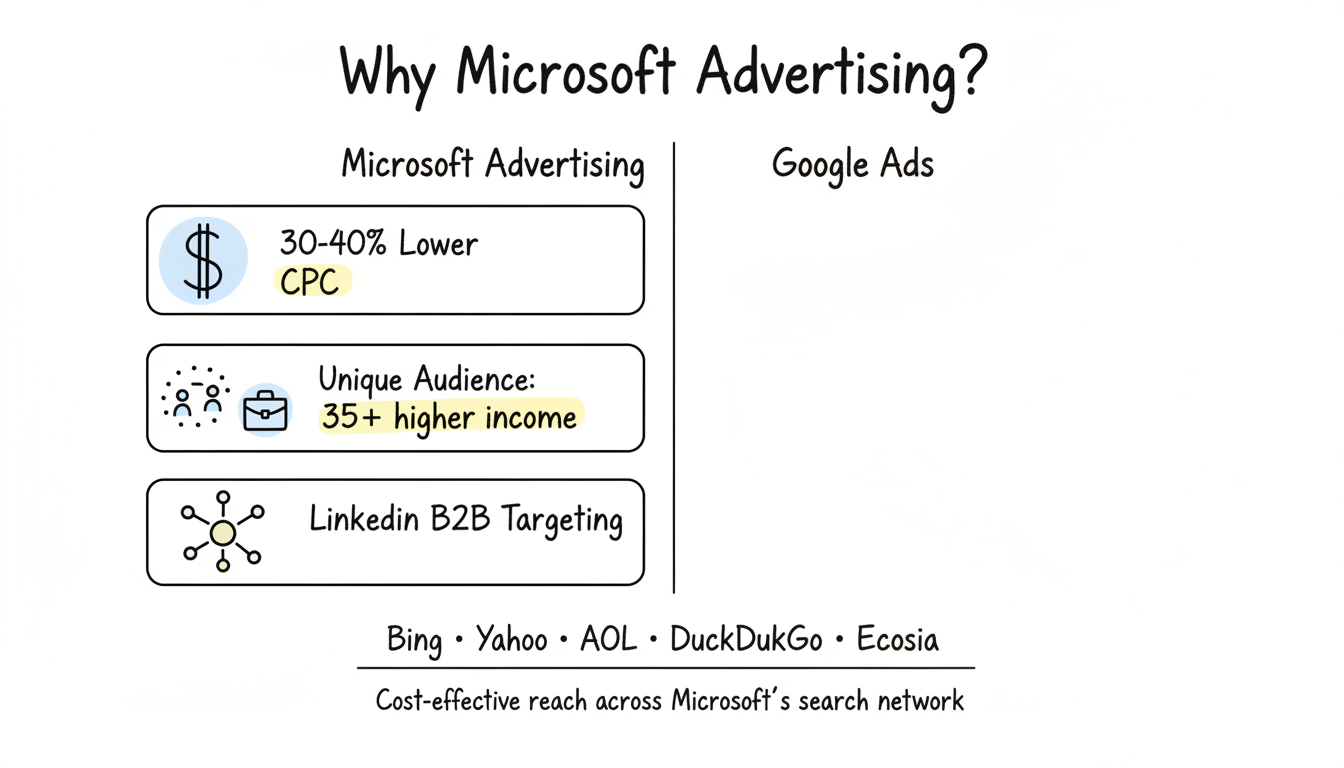
Microsoft Advertising reaches searchers across Bing, Yahoo, AOL, DuckDuckGo, Ecosia, and other partner networks. While Google dominates search, Microsoft offers distinct advantages:
- Lower CPCs: 30-40% lower cost-per-click than equivalent Google campaigns
- Less competition: Fewer advertisers bidding on the same keywords
- Unique audience: Older, more affluent demographic with higher purchasing power
- LinkedIn integration: Exclusive B2B targeting by job title, company, and industry
Who Uses Microsoft Advertising?
Microsoft's search network reaches specific audience segments:
- Desktop users at work (where Bing has higher market share)
- Older demographics (35+) with higher incomes
- Windows and Microsoft product users
- B2B decision-makers reachable through LinkedIn targeting
Account Setup Tutorial
Let's start with creating your Microsoft Advertising account.
Step 1: Create Your Account
- Go to ads.microsoft.com
- Click "Sign up now" or "Get started"
- Sign in with your Microsoft account or create one
- Enter your business information:
- Business name
- Country/region
- Time zone
- Currency (cannot be changed later)
Step 2: Set Up Billing
Before running ads, configure your payment method:
- Navigate to Tools > Billing & Payments
- Choose your payment setting:
- Prepay: Add funds before ads run
- Postpay: Pay after ads run (credit card or invoice)
- Add a payment method (credit card, debit card, or PayPal)
- Set a billing threshold if using postpay
Step 3: Import from Google Ads (Optional)
If you have existing Google Ads campaigns, importing saves time:
- Go to Import > Import from Google Ads
- Sign into your Google Ads account
- Select campaigns to import
- Review and adjust settings for Microsoft
- Choose what to import (campaigns, ad groups, keywords, ads)
Microsoft now supports importing Performance Max campaigns directly, making migration even easier in 2026.
Important: After importing, review and adjust bids—Microsoft's lower competition often means you can bid less for similar positions.
Campaign Structure Tutorial
Understanding campaign structure helps you organize ads effectively.
Campaign Hierarchy
Account
└── Campaign (budget, targeting settings)
    └── Ad Group (themes, keywords)
        └── Ads (actual advertisements)
            └── Keywords (search terms)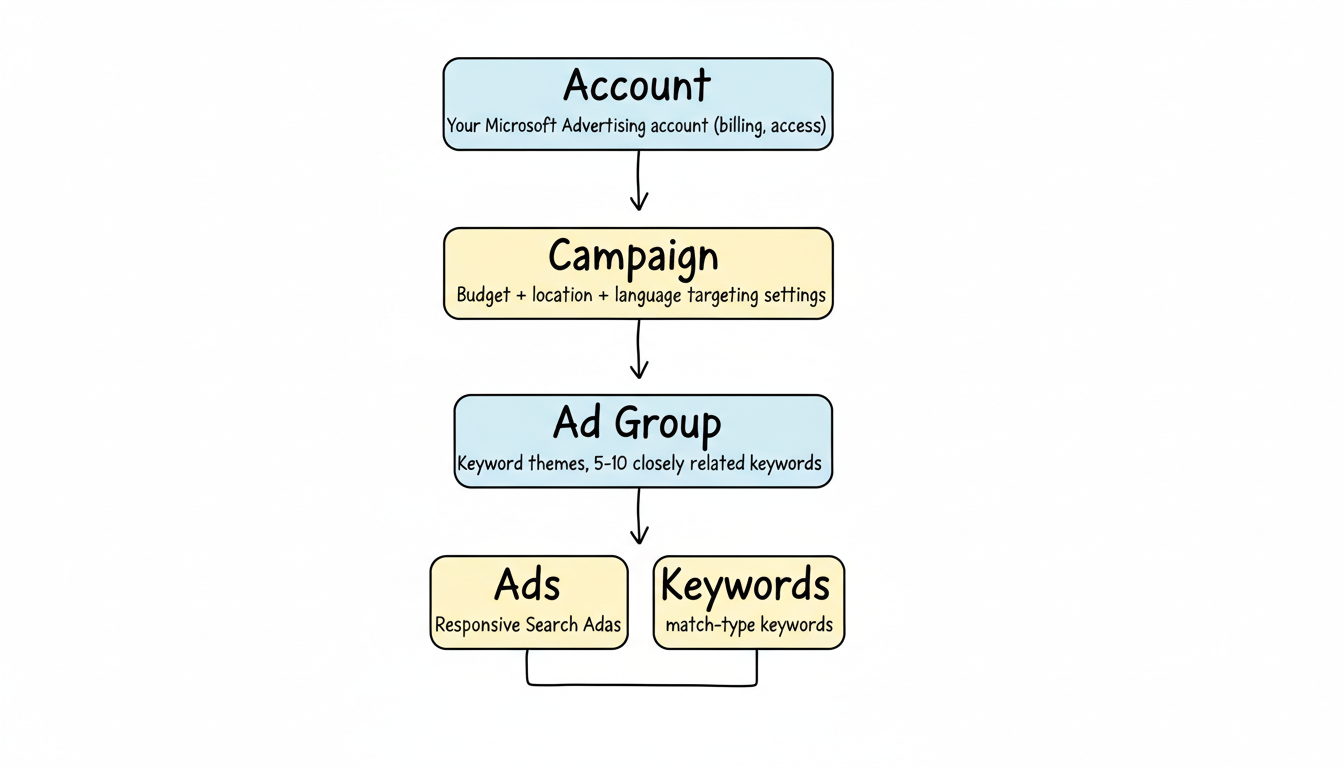
Campaign Types in Microsoft Advertising
Choose the right campaign type for your goals:
Campaign Type | Best For | Key Features |
Search | Direct response, leads | Text ads on search results |
Shopping | Ecommerce products | Product ads with images and prices |
Audience | Brand awareness | Display ads across Microsoft network |
Performance Max | Multi-channel | AI-optimized across all formats |
Creating Your First Campaign
Step 1: Campaign Settings
- Click "Create campaign"
- Select your goal (conversions, website visits, etc.)
- Choose campaign type (start with Search)
- Name your campaign clearly (e.g., "Brand - Search - US")
Step 2: Budget and Bidding
- Daily budget: Amount you're willing to spend per day
- Bid strategy: Start with "Enhanced CPC" for control, or "Maximize conversions" if you have conversion tracking set up
Step 3: Location Targeting
- Target specific countries, regions, cities, or radius around a location
- Use location bid adjustments to increase bids in high-value areas
Step 4: Language Targeting
- Select languages your customers speak
- Match this to your ad and landing page language
Ad Group and Keyword Setup
Ad groups organize your keywords and ads around specific themes.
Creating Effective Ad Groups
Keep ad groups tightly themed with 5-10 closely related keywords maximum. This ensures your ad copy matches what people search for.
Example structure for a software company:
Campaign: Project Management Software
├── Ad Group: Project Management Software
│   └── Keywords: project management software, project management tool
├── Ad Group: Task Management
│   └── Keywords: task management app, task tracking software
├── Ad Group: Team Collaboration
│   └── Keywords: team collaboration tools, team project software
Match Type | Symbol | Example Keyword | Matches |
Broad | none | project software | Related searches |
Phrase | "quotes" | "project management" | Contains phrase |
Exact | [brackets] | [project management software] | Exact term |
Recommendation: Start with exact match keywords for higher-quality traffic, then expand to phrase and broad as you gather data. This approach aligns with broader paid search advertising strategies that prioritize quality over volume.
Adding Negative Keywords
Negative keywords prevent your ads from showing for irrelevant searches:
- Add "free" if you don't offer free products
- Add competitor names you don't want to appear for
- Add irrelevant industry terms
- Review search terms reports regularly to find new negatives
Writing Effective Ads
Your ads determine whether people click through to your website.
Responsive Search Ads
Microsoft Advertising primarily uses Responsive Search Ads (RSAs):
- Provide up to 15 headlines (30 characters each)
- Provide up to 4 descriptions (90 characters each)
- Microsoft tests combinations automatically
Best practices:
- Include your main keyword in at least 2-3 headlines
- Highlight unique benefits and offers
- Include a clear call-to-action
- Use all available headline and description slots
Ad Example
Headlines:
- Project Management Software
- Try Free for 30 Days
- Trusted by 10,000+ Teams
- Easy Task Tracking

Descriptions:
- Streamline your projects with our intuitive software. Start your free trial today and see results in minutes.
- Organize tasks, track progress, and collaborate seamlessly. No credit card required to start.
Extensions add more information and increase ad visibility:
- Sitelinks: Links to specific pages (Features, Pricing, Contact)
- Callouts: Short benefit statements (Free Trial, 24/7 Support)
- Structured snippets: Lists of features or services
- Call extensions: Phone number for click-to-call
- Location extensions: Business address and directions
Conversion Tracking Setup
Without conversion tracking, you can't measure or optimize campaign performance. This fundamental principle applies whether you're using Microsoft Advertising or exploring what is paid search advertising across other platforms.
Universal Event Tracking (UET) Tag
Microsoft Ads requires setting up a UET tag for conversion tracking:
- Go to Tools > Conversion tracking > UET tag
- Click "Create UET tag"
- Name it (e.g., "Main UET Tag")
- Install the tag on all website pages:
- Via Google Tag Manager (recommended)
- Direct code installation
- Through a plugin (WordPress, Shopify, etc.)
Creating Conversion Goals
After installing UET, create conversion goals:
- Go to Tools > Conversion tracking > Conversion goals
- Click "Create conversion goal"
- Choose goal type:
- Destination URL (thank you page)
- Event (button clicks, form submissions)
- Duration (time on site)
- Set conversion value if applicable
- Choose attribution model
Enhanced Conversions
Enable Enhanced Conversions to improve attribution accuracy by passing hashed customer data (email, phone) with conversion events.
LinkedIn Profile Targeting
Microsoft's exclusive LinkedIn integration gives you powerful B2B targeting options.
Available LinkedIn Targeting Options
- Company: Target employees of specific companies
- Industry: Target by business sector
- Job function: Target by department (Marketing, IT, Finance)
- Company size: Target by number of employees
Setting Up LinkedIn Targeting
- Create or edit your campaign
- Go to targeting settings
- Click "LinkedIn profile targeting"
- Add your targeting criteria
- Consider layering LinkedIn targeting with keywords for precision
Example: Target "project management software" searches only from people at companies with 500+ employees who work in IT departments.
Optimization Best Practices
Launching campaigns is just the beginning. Continuous optimization improves results.
Weekly Optimization Tasks
- Review search terms and add negative keywords
- Check campaign pacing against budget
- Monitor Quality Score changes
- Test new ad copy variations
Monthly Optimization Tasks
- Analyze conversion data by keyword, ad, and audience
- Adjust bids based on performance
- Expand successful campaigns with new keywords
- Pause underperforming keywords and ads
Key Metrics to Monitor
Metric | What It Tells You | Target |
CTR | Ad relevance | 2-5%+ |
Quality Score | Account health | 7+ |
Conversion Rate | Landing page effectiveness | Industry varies |
CPA | Cost efficiency | Below target CAC |
ROAS | Return on investment | 3x+ |
Common Mistakes to Avoid
- Bidding too high: Microsoft has less competition—start lower than Google
- Ignoring search terms: Review regularly for irrelevant queries
- One ad per ad group: Test multiple ad variations
- No conversion tracking: You can't optimize what you don't measure
- Copying Google exactly: Adjust for Microsoft's different audience
Understanding Microsoft Ads vs Google Ads comparison helps you optimize campaigns based on each platform's unique characteristics.
Frequently Asked Questions
Is Bing Ads the Same as Microsoft Advertising?
Yes. Microsoft rebranded Bing Ads to Microsoft Advertising in 2019. The platform is the same, and ads appear on Bing, Yahoo, AOL, and partner networks. You may see both names used interchangeably.
How Much Does Microsoft Advertising Cost?
You control your budget completely. There's no minimum spend requirement. CPCs are typically 30-40% lower than Google Ads. Start with a test budget of $500-1,000/month to gather meaningful data before scaling.
Can I Import My Google Ads Campaigns?
Yes. Microsoft Advertising has a built-in import tool that transfers campaigns, ad groups, keywords, and ads from Google Ads. Review and adjust bids after importing since Microsoft typically requires lower bids for similar positions.
How Long Does It Take to See Results?
Ads can appear within hours of campaign launch. However, gathering enough data for meaningful optimization typically takes 2-4 weeks. Give campaigns time to gather data before making major changes.
Key Takeaways
- Microsoft Advertising reaches users across Bing, Yahoo, AOL, and partner networks
- Lower CPCs (30-40% less than Google) make it cost-effective to test
- LinkedIn targeting enables precise B2B audience targeting unavailable elsewhere
- Import from Google Ads to quickly launch campaigns based on proven performers
- UET tag must be installed for conversion tracking and optimization
- Start with exact match keywords for quality traffic, then expand
- Optimize continuously through weekly and monthly review processes