
You can block Google AI Overviews using three tested browser extensions -- Hide Google AI Overviews, 10 Blue Links, and Bye Bye Google AI -- or by adding the udm=14 URL parameter to search queries. Google offers no official off switch, but these workarounds remove AI summaries while preserving Maps, Images, and News results (extensions) or revert to classic text-only links (udm=14). This guide ranks all methods, covers security considerations, and shows you setup steps for Chrome, Firefox, and Edge in 2026.
What Is Google'S Official Position on Disabling AI Overviews?
Google has made its stance clear: AI Overviews are "a core Google Search feature" and "features cannot be turned off." There's no settings toggle to disable them in your Google account.
However, Google does offer one official workaround: the Web filter. Clicking "Web" in the search filter options displays only text-based links without AI Overviews, Featured Snippets, or other enhanced features.
The limitation: you lose access to Maps, Images, News, and other integrated results with this filter.
What Are the Best Browser Extensions to Block AI Overviews?
Several browser extensions have emerged to fill the gap Google left. Here are the top options for 2026.
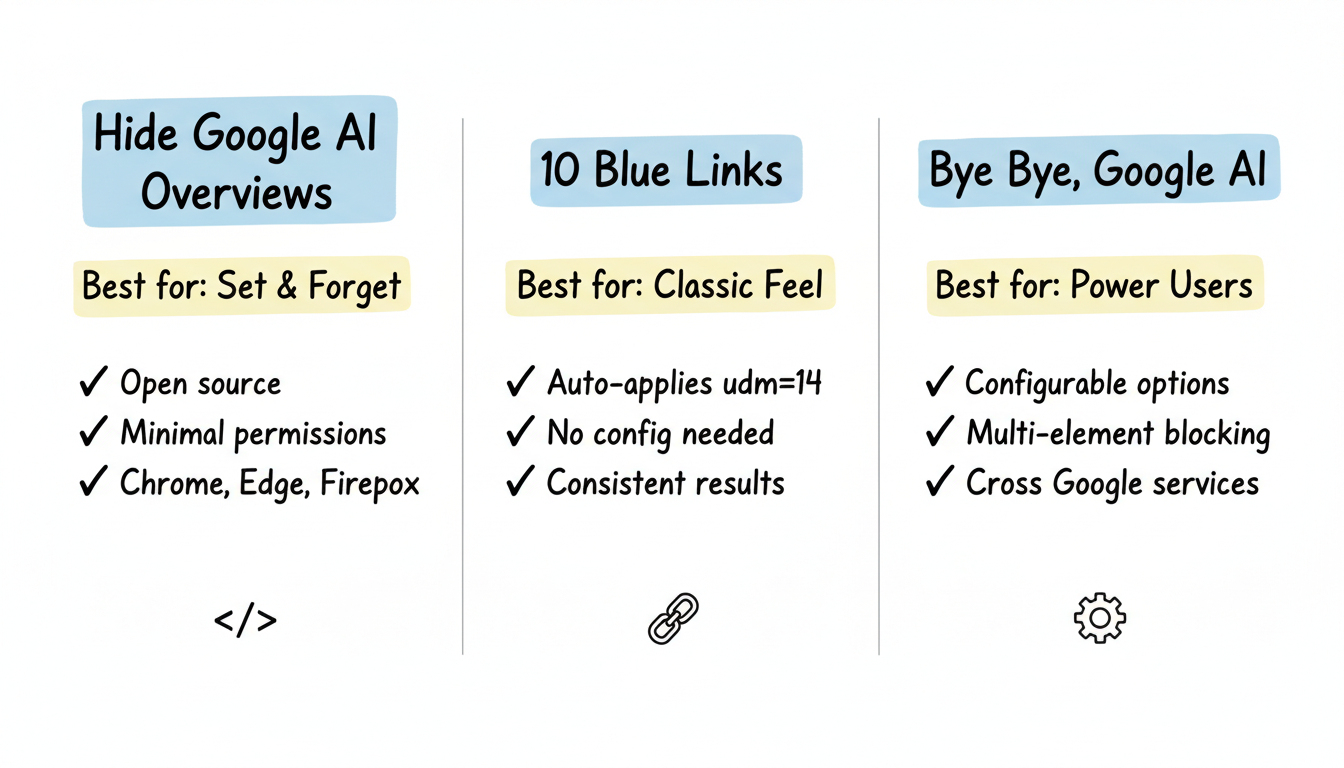
Hide Google AI Overviews
Best for: Set-and-forget simplicity
Feature | Details |
Developer | Zbarnz |
Open source | Yes (code available) |
Browsers | Chrome, Edge, Firefox |
Method | CSS/JavaScript injection |
Strengths:
- Clean SERP without losing Maps/Images/News
- Open source for transparency
- Minimal permissions required
- Regular updates when Google changes markup
Considerations:
- Requires permission to read/modify Google Search pages
- Occasional breaks when Google updates HTML structure
10 Blue Links
Best for: Return to classic Google experience
This extension forces Google to display traditional search results, mimicking the pre-AI search experience. It uses the udm=14 parameter automatically.
Strengths:
- Automatically applies to all searches
- No manual URL editing required
- Consistent results
Considerations:
- Removes more than just AI Overviews
- May hide some useful features
Bye Bye, Google AI
Best for: Customizable blocking
Allows users to hide AI Overviews along with other unwanted Google Search elements. Offers more granular control over what appears in results.
Strengths:
- Configurable options
- Blocks multiple elements
- Works across Google services
Considerations:
- More complex setup
- Broader permissions needed
How Does the Udm=14 Parameter Block AI Overviews?
For users who prefer not to install extensions, Google's undocumented udm=14 URL parameter provides a native workaround.
How It Works
Adding &udm=14 to any Google search URL forces Web-only results without AI Overviews. This approach is particularly useful for those exploring google-ai-overviews-not-showing-up strategies and want to compare traditional versus AI-enhanced results.
Example:
https://www.google.com/search?q=your+search+term&udm=14Chrome custom search engine:
- Go to Settings -> Search engine -> Manage search engines
- Add new search engine with URL: https://www.google.com/search?q=%s&udm=14
- Set as default or use a keyword shortcut
Firefox search engine:
- Navigate to about:config
- Modify or add custom search string
- Include &udm=14 parameter
Edge configuration: Follow similar steps as Chrome through Settings -> Privacy, search, and services -> Address bar and search.
Can Ublock Origin Block Google AI Overviews?
For users already running uBlock Origin ad blocker, a custom filter can hide AI Overviews without additional extensions.
Adding the filter:
- Open uBlock Origin settings
- Navigate to "My filters" tab
- Add filter rule targeting AI Overview elements
- Save and apply
This method treats AI Overviews similarly to advertisements--hiding them based on CSS selectors. The approach requires occasional updates when Google changes its markup.
What Search Operators Can Reduce AI Overviews?
Manual search operators can also reduce AI Overview appearances:
Operator | Effect |
-ai in query | May reduce AI content in some results |
before:2023 | Returns older results without AI influence |
site: operator | Limits to specific domains |
These methods are less reliable than extensions but require no installation.
Important Security Considerations
Browser extensions require permissions to function--and some have exploited this trust.
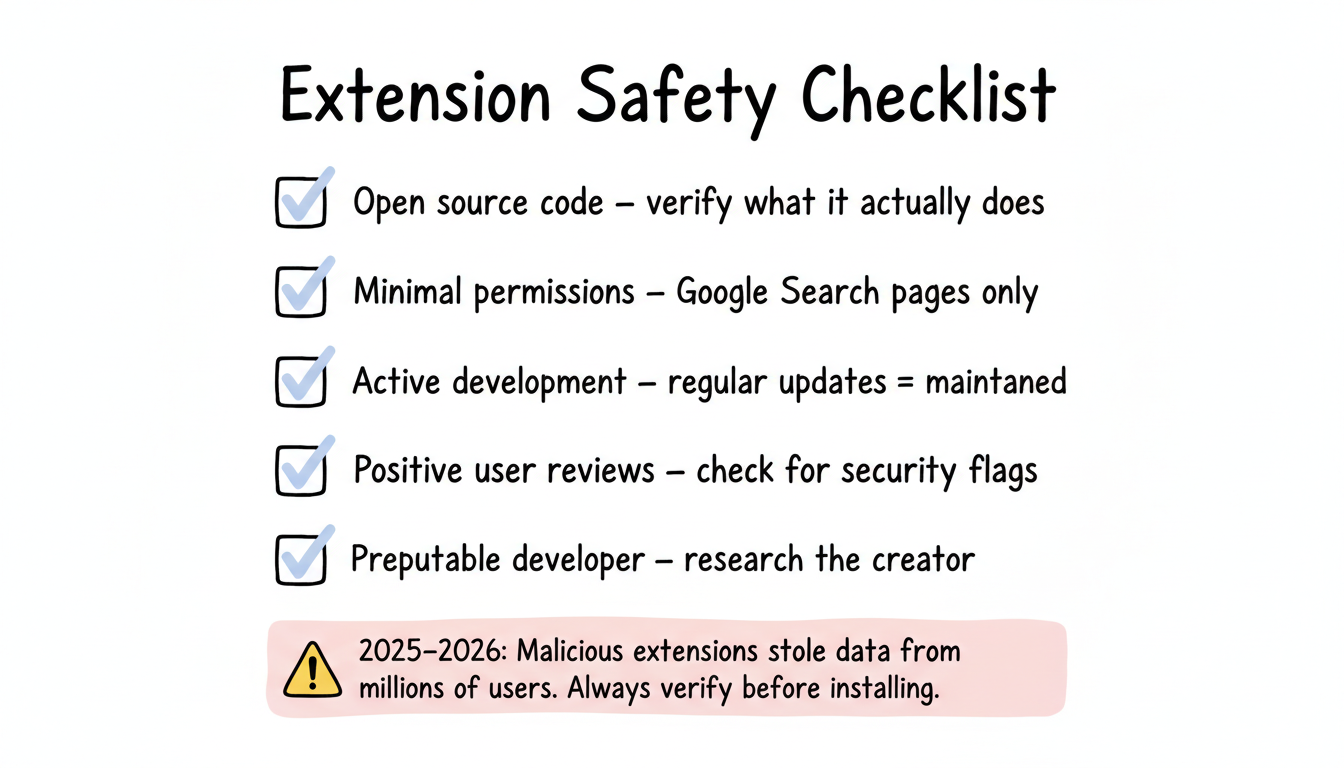
Extension Safety Checklist
Check | Why It Matters |
Open source code | Verify what the extension actually does |
Minimal permissions | Only Google Search pages should be accessed |
Active development | Regular updates indicate maintenance |
User reviews | Check for security concerns |
Developer reputation | Research the creator |
Recent concerns: In 2025-2026, multiple malicious browser extensions affected millions of users by stealing data, including AI chatbot conversations. Always verify extension legitimacy before installation.
Safe Extension Practices
- Install only from official browser stores
- Review permissions before installing
- Keep extensions updated
- Remove extensions you no longer use
- Prefer open-source options where available
What Are the Limitations of Blocking AI Overviews?
All blocking methods come with trade-offs.
What Blocking Methods Can'T Do
- Prevent Google from generating AI Overviews server-side
- Guarantee permanent functionality (Google updates break methods)
- Work on mobile apps (browser-based solutions only)
- Block AI features in other search engines
Understanding these limitations is crucial when comparing different structured-data-ai-search across the landscape.
When Blocking Breaks
Google periodically updates its HTML structure, which breaks CSS-based blocking methods. When this happens:
- Check for extension updates
- Verify the extension developer is still active
- Consider alternative methods temporarily
What Are the Alternatives to Blocking AI Overviews?
Alternative Search Engines
Some search engines don't use AI Overviews. For businesses evaluating platforms, these alternatives offer different visibility opportunities. Understanding AEO and structured data strategy helps you optimize for both traditional and AI-powered search results.
- DuckDuckGo (optional AI features)
- Startpage (Google results without AI additions)
- Brave Search (AI optional)
Browser-Level Solutions
Some users configure browsers to use alternative default search engines, bypassing Google entirely for everyday searches while keeping it available for specific needs. This approach can be particularly valuable when conducting how-to-turn-on-google-ai-overviews research across multiple platforms.
Frequently Asked Questions
Can I Permanently Disable Google AI Overviews?
No official method exists to permanently disable AI Overviews in Google Search. Google confirms they are a core search feature with no settings toggle. Extensions and URL parameters provide workarounds, but Google can change its systems at any time.
Are AI Overview Blocking Extensions Safe?
Extensions from reputable developers with open-source code and minimal permissions are generally safe. In 2025-2026, multiple malicious browser extensions stole data from millions of users, so always verify legitimacy before installing and remove unused extensions.
Why Doesn'T Google Offer an Off Switch?
Google considers AI Overviews a core search feature integral to their product direction. The company has invested heavily in AI integration and views it as essential to competing with AI-native search tools like ChatGPT and Perplexity.
Do Blocking Methods Work on Mobile?
Browser extensions work on mobile browsers that support them (like Firefox on Android). The udm=14 parameter works in any mobile browser. Native Google app and iOS Safari have fewer options.
What Is the Udm=14 Parameter and How Does It Work?
The udm=14 parameter is an undocumented Google URL parameter that forces Web-only results without AI Overviews, Featured Snippets, or other enhanced features. Add &udm=14 to any Google search URL to get clean, text-based results. For a full guide on AI Overviews in search, see our breakdown of why Google AI Overviews may not appear.
What Happens When You Block AI Overviews
Blocking AI Overviews does not affect your standard search results, rankings, or any other Google feature. It only hides the AI-generated summary panel at the top of results. If you are a publisher or marketer who needs to see AI Overviews for competitive research, make sure to whitelist Google in your ad blocker or use a clean browser profile for your research sessions.