
Google's AI Overviews now appear in nearly half of all search results - and there's no official off switch. While Google views these AI-generated summaries as core search improvements rather than optional features, users do have several workarounds to minimize or hide them.
This guide covers every available method for controlling AI Overviews in your search experience.
The Reality: No Universal Disable Option
Let's address this directly: Google does not provide a straightforward setting to completely disable AI Overviews across all searches.
According to How2Shout's comprehensive analysis, Google views AI Overviews as core improvements to Search, not optional add-ons. While Google does offer experimental toggles through Search Labs for some users, these are inconsistent, regionally limited, and don't guarantee complete removal of AI from your search experience.
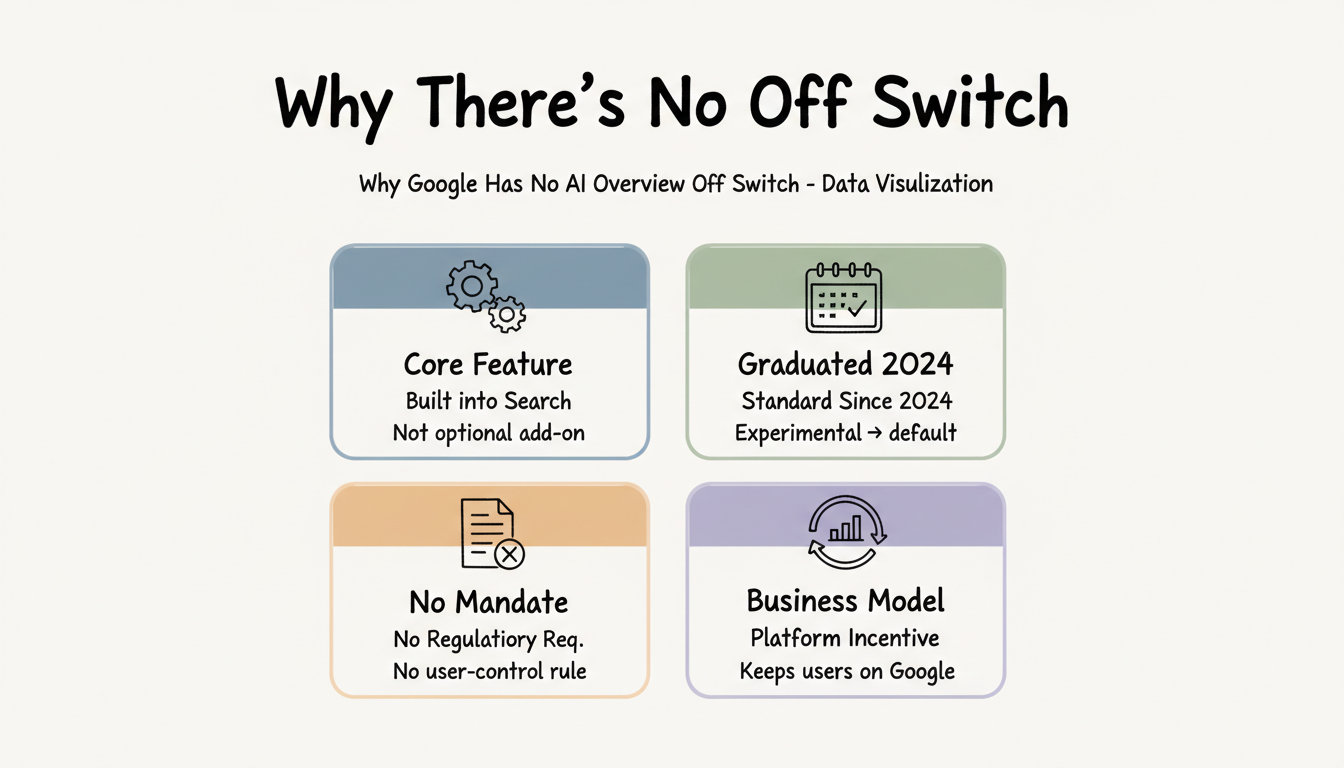
Why no off switch exists:
- Google considers AI Overviews a fundamental search enhancement
- The feature graduated from experimental to standard in 2024
- No regulatory requirement currently mandates user control
- Business model incentivizes keeping users on Google's platform
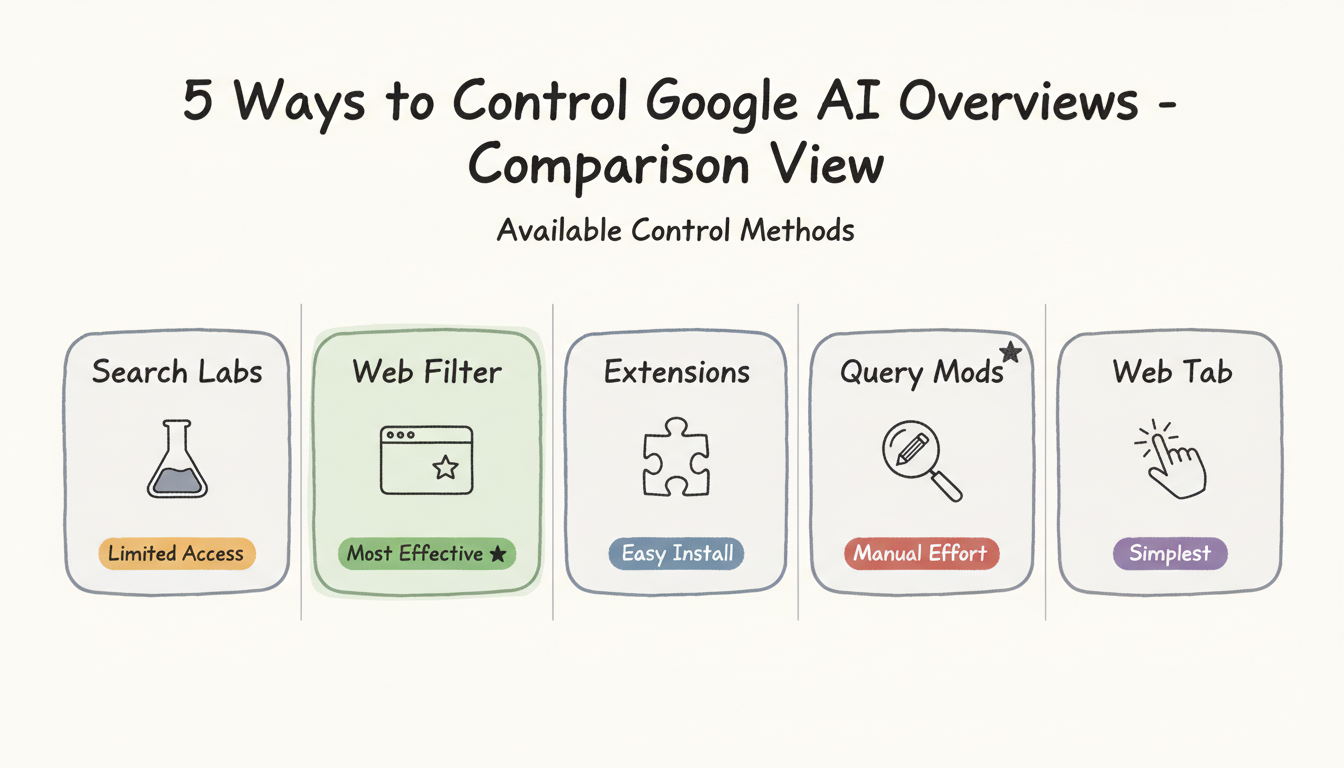
Available Control Methods
Despite the lack of an official setting, several approaches reduce or hide AI Overviews effectively.
Method 1: Search Labs Toggle (Limited Availability)
Google Search Labs offers experimental toggles that can reduce AI content in some cases.
To check if available:
- Go to Google Search and click the Labs icon (beaker)
- Look for "AI Overviews and more" or "AI in Search" toggle
- If present, turn off to reduce experimental AI features
Important limitations:
According to How2Shout, Search Labs is not available for Google Workspace accounts, school accounts, certain regions, or users whose accounts weren't included in the experiment. Even when the toggle exists, it doesn't disable all AI Overviews - only experimental features.
Availability Factor | Impact |
Google Workspace accounts | No access |
School/educational accounts | No access |
Certain geographic regions | No access |
Standard consumer accounts | Variable access |
Method 2: Web Filter Default (Most Effective)
The most reliable workaround sets Google's "Web" tab as your default search, bypassing AI Overviews entirely.
According to Pureinfotech's guide, you can configure Chrome to search Google's "Web" tab, which shows only traditional web results without AI Overviews.
Chrome Setup:
- Open Chrome Settings to Search engine
- Click "Manage search engines and site search"
- Under "Site search," click Add
- Enter these values:
- Name: "Google Web" (or similar)
- Shortcut: google.com
- URL: {google:baseURL}/search?udm=14&q=%s
- Click Add, then click the three-dot menu and select "Make default"
Microsoft Edge Setup:
- Open Edge Settings to Privacy, search, and services
- Click "Address bar and search" to "Manage search engines"
- Click Add and enter the same values as Chrome
- Set as default
This method sends all searches to Google's Web tab, which displays traditional results without AI Overviews, images, videos, or answer boxes.
Method 3: Browser Extensions
Extensions can hide AI Overview modules from your view while still using standard Google Search.
Popular options:
According to The Register's guide, browser extensions using CSS can hide AI Overviews and optionally remove sponsored links, images, videos, and "people also ask" boxes.
Extension types:
- CSS hiding extensions - Remove AI Overview display visually
- Ad blockers with cosmetic filtering - Can target AI elements
- User-style extensions - Apply custom CSS to hide elements
Pros and cons:
Approach | Pros | Cons |
Extensions | Easy to install, automatic | May break with Google updates |
Custom CSS | Precise control | Requires technical knowledge |
Ad blockers | Multi-purpose | Can affect other site functions |
Method 4: Query Modifications
Specific search behaviors naturally avoid AI Overviews, similar to how AI-powered search tools employ different query strategies for optimized results.
Effective techniques:
- Add site: filters to target specific domains
- Use filetype: to search for specific document types
- Include exact phrases in quotes
- Navigate directly to known sources for high-stakes topics
According to LinkedIn's analysis of AI Overview controls, using more specific queries that force narrow retrieval naturally reduces AI Overview appearance.
Method 5: Web Tab Manual Switch
The simplest approach: manually switch to the Web tab after each search.
Steps:
- Perform your search normally
- Look for filter options below the search bar
- Click "Web" to view traditional results only
This removes the AI Overview and shows only conventional link results. The downside is repeating this for every search.
What You Cannot Control
Understanding limitations helps set realistic expectations.
Publisher Opt-Out
Content creators cannot selectively opt out of AI Overview citations while maintaining normal search visibility.
According to ALMCORP's comprehensive analysis, Google currently provides no mechanism to opt out of AI Overview citations while maintaining normal search visibility. Your options are limited to blocking Googlebot entirely (which eliminates all Google indexing), noindexing specific content, or paywalling content.
Account-Level Settings
No Google Account setting exists to disable AI Overviews globally. The feature operates at the search level, not the account level.
Mobile Limitations
Mobile workarounds are more limited than desktop options. Browser extensions generally don't work on mobile, and custom search engine configurations require additional steps.
Regional Differences
AI Overview availability and control options vary by region, much like how local AEO services must adapt to regional search behavior differences.
United States: Full AI Overview deployment, limited opt-out options European Union: GDPR regulations may require more explicit consent mechanisms Other regions: Rolling deployment with varying feature availability
According to Shelly Palmer's analysis, in Europe, GDPR requires explicit opt-in consent for AI features in some Google products, so defaults operate differently based entirely on regulation.
Gmail AI Settings (Related)
Gmail's new Gemini AI features can be controlled, though with tradeoffs.
To disable Gmail AI features:
- Open Gmail Settings (gear icon)
- Scroll to "Smart Features" under General tab
- Uncheck "Turn on smart features in Gmail, Chat, and Meet"
- Also disable Google Workspace smart features
Tradeoff: Turning off Gemini AI features also disables autocorrect, spell check, desktop notifications, package tracking, and email category sorting.
Practical Recommendations
For Daily Users Wanting Less AI
- Set up the Web filter as default search (Method 2)
- Install a CSS-hiding extension as backup
- Use manual Web tab switching when needed
For Privacy-Focused Users
- Use incognito mode to limit personalization
- Combine multiple methods for maximum control
- Consider alternative search engines for sensitive queries
For Researchers and Professionals
- Web filter default provides cleanest results
- Site-specific searches bypass AI synthesis
- Direct navigation to known sources when accuracy matters
Understanding how to turn on Google AI Overviews can be just as valuable as knowing how to disable them - the same controls that minimize AI can help you strategically enable it when beneficial. For professionals managing multiple clients, working with an AEO marketing consultant can help develop sophisticated strategies that leverage AI Overviews when advantageous while maintaining control over visibility.
The Reality of the Control
The reality is the limited control. The user cannot turn the overview off everywhere, so the honest program plans for the box rather than against it. The disciplined read names the gap, and the clarity makes the work fundable, because the definition of the need is the first deliverable and the data is the guide.
Avoid assuming a global off switch. A strategy that waits for the disable misses the cited presence, so the bet follows the behavior. The honest read names the gap, and the clarity makes the program coherent instead of a reflex, because the spread is the hedge and the structure is the asset that pays.
Available Control Methods
The methods are the account and the region settings. A control that exists in one market may not in another, so the plan spreads across the markets that matter. The distributed plan protects the reach, and the clarity makes the work coherent instead of a bet on a single box, because the spread is the hedge and the fit is the lever.
Use the method that exists. A setting the user can toggle is the one to document, so the help matches the reality. The honest guide is the one that reflects the live control, and the patience to verify it is the edge most teams skip while they cite the stale rule, because the substance is the point and the data is the guide.
Practical Recommendations
The recommendation is the cited presence. A clean, schema'd page that leads with the fact is what the box lifts, so the bet follows the behavior. The honest read names the gap, and the clarity makes the program fundable, because the definition of the need is the first deliverable and the structure is the asset.
Measure the recommendation on a cadence. A fixed query list watched over time shows whether you hold the box, because the position is not permanent. The disciplined check catches the loss early, and the patience to monitor is the quiet edge most teams skip while they assume the win holds, because the measurement is the guide and the upkeep is the value.
Key Takeaways
Google AI Overview control requires workarounds, not official settings:
- No universal off switch exists - Google considers AI Overviews core functionality, not an optional feature
- Web filter is most effective - Setting Google's Web tab as default reliably bypasses AI Overviews
- Search Labs offers limited control - Toggle availability varies by account type and region
- Extensions provide hiding options - CSS-based extensions can remove AI Overviews from view
- Publishers cannot selectively opt out - No mechanism exists to avoid AI citations while maintaining normal search visibility
The landscape for AI search control continues evolving. User feedback and regulatory pressure may eventually lead to more official options, but for now, these workarounds represent the available methods for managing AI Overviews in your search experience.