
LinkedIn carousel ads let you tell a story across multiple swipeable cards, making them one of the most engaging formats for B2B marketers. Whether you're showcasing product features, walking through a case study, or delivering educational content, carousels keep users engaged far longer than static images.
This guide covers everything you need to create high-converting carousel campaigns in 2026: specs, design best practices, strategic use cases, and examples that work.
LinkedIn Carousel Ad Specs for 2026
Getting your technical specs right ensures your carousel ads display properly across all devices. Here are the current requirements:
Image Specifications
Specification | Requirement |
Recommended Size | 1080 x 1080 pixels |
Aspect Ratio | 1:1 (square) |
File Format | JPG, PNG, or non-animated GIF |
Maximum File Size | 10 MB per card |
Number of Cards | 2-10 cards |
Minimum Resolution | 1080 x 1080 pixels |
According to LinkedIn's official guidelines, maintaining the 1:1 square ratio ensures consistency across all carousel slides and optimal display on both desktop and mobile devices.
Text Specifications
Element | Character Limit |
Headline | 255 characters (recommended: 45 max) |
Ad Name | 255 characters |
Introductory Text | 600 characters (recommended: 150 max) |
Card Headlines | 45 characters (recommended) |
Video Carousel Specs (If Using Video Cards)
Specification | Requirement |
Aspect Ratio | 1:1 recommended |
File Size | 75 KB - 200 MB |
Duration | 3 seconds - 30 minutes |
Format | MP4 |
When to Use LinkedIn Carousel Ads
Carousel ads excel in specific scenarios. Choose this format when your content benefits from a sequential, multi-card presentation.
Best Use Cases for Carousels
Product Feature Walkthroughs
Break down complex products into digestible feature cards. Each swipe reveals another benefit, keeping prospects engaged while educating them about your solution. When planning your LinkedIn advertising ROI, consider that carousel ads typically drive higher engagement than static formats.
Example: A SaaS company used carousel ads to walk prospects through a product workflow, resulting in a 40% increase in demo signups.
Step-by-Step Guides
Educational content thrives in carousel format. Walk users through processes, frameworks, or methodologies one step at a time.
Case Study Highlights
Share customer success stories across multiple cards: challenge, solution, results. This format lets you tell the full story without overwhelming readers. For companies tracking LinkedIn conversion tracking, carousel ads provide more data points to measure engagement depth.
Multiple Product Showcase
Display different products or service tiers in a single ad unit. Each card can feature a different offering with its own headline and description.
Before/After Comparisons
Show transformation or results clearly by dedicating cards to the "before" state and "after" outcomes.
Data Visualization Series
Present statistics, survey results, or benchmark data across multiple slides for better absorption and impact. When comparing performance against LinkedIn ads benchmarks, carousel ads often exceed average engagement rates.
Funnel Stage Alignment
According to LinkedIn ad format analysis, carousels work particularly well at these funnel stages:
Funnel Stage | Carousel Use Case |
Top of Funnel (Awareness) | Educational content, industry trends |
Middle of Funnel (Consideration) | Product features, case studies |
Bottom of Funnel (Decision) | Pricing tiers, implementation guides |
Design Best Practices for High-Converting Carousels
Card-By-Card Strategy
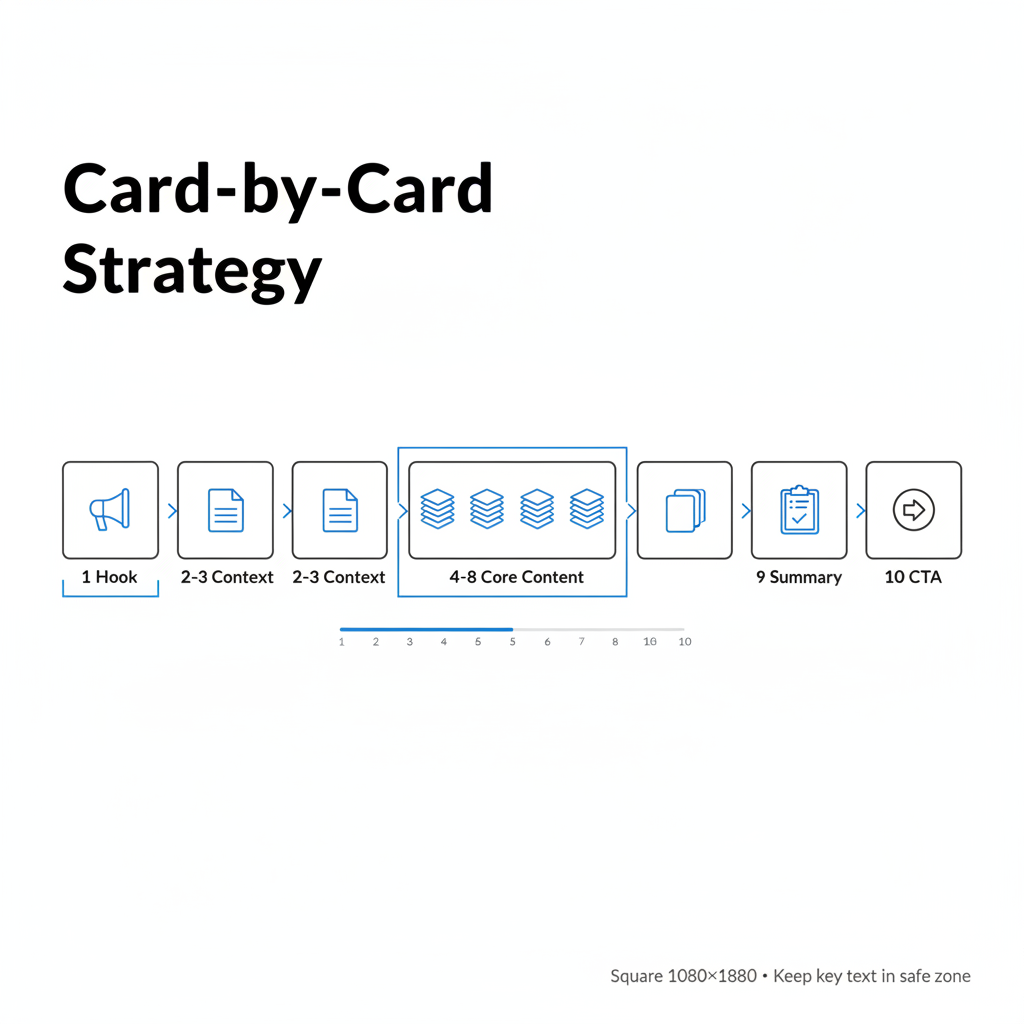
Card 1: The Hook
Your first card determines whether users swipe. Make it count:
- Bold headline with intriguing promise
- Clear visual hierarchy
- Compelling reason to swipe right
Cards 2-3: Context and Setup
Build the foundation for your core message:
- Establish the problem or opportunity
- Create relevance for your target audience
- Maintain visual consistency with card 1
Cards 4-8: Core Content
Deliver your main value:
- One key idea per slide
- Minimal text (10-20 words max per card)
- Strong visuals that reinforce the message
Card 9: Summary or Recap
Synthesize key points:
- Bullet list of takeaways
- Clear connection to your offer
Card 10: Call-to-Action
Close with clear direction:
- Specific CTA (Download, Register, Learn More)
- Brief about section or contact info
- Consistent branding
Visual Design Guidelines
Design research shows carousels keep users engaged for an average of 3-5 minutes—far longer than other formats. Maximize this engagement with smart design:
Typography
- Headlines: 40-60 point fonts
- Body text: 24-36 point fonts
- Use high contrast for readability
- Limit to 2 font families maximum
Layout
- Leave adequate white space
- Don't overcrowd slides
- Use visual cues (arrows, progress indicators) to encourage swiping
- Keep important text away from edges (safe zone)
Branding
- Consistent colors across all cards
- Logo placement on first and last cards
- Cohesive design template throughout
Mobile Optimization
Most LinkedIn users view content on mobile. According to platform best practices:
- Test readability on small screens
- Ensure main message is visible without zooming
- Use high-resolution images (300 DPI minimum)
Carousel Ads vs Single Image Ads
Both formats have their place. Here's when to choose each:
Choose Carousel When:
Scenario | Why Carousel Works |
Complex products/services | Multiple cards explain different aspects |
Storytelling required | Sequential format builds narrative |
Multiple CTAs/offers | Each card can drive to different destinations |
Educational content | Step-by-step presentation aids understanding |
High engagement goal | Swipe interaction increases time on ad |
Choose Single Image When:
Scenario | Why Single Image Works |
Simple, clear message | No need for multiple slides |
Brand awareness | One powerful visual creates impact |
Quick announcements | Concise message doesn't require story |
Testing new audiences | Simpler format for initial data |
Budget constraints | Faster to create and test |
Performance Comparison
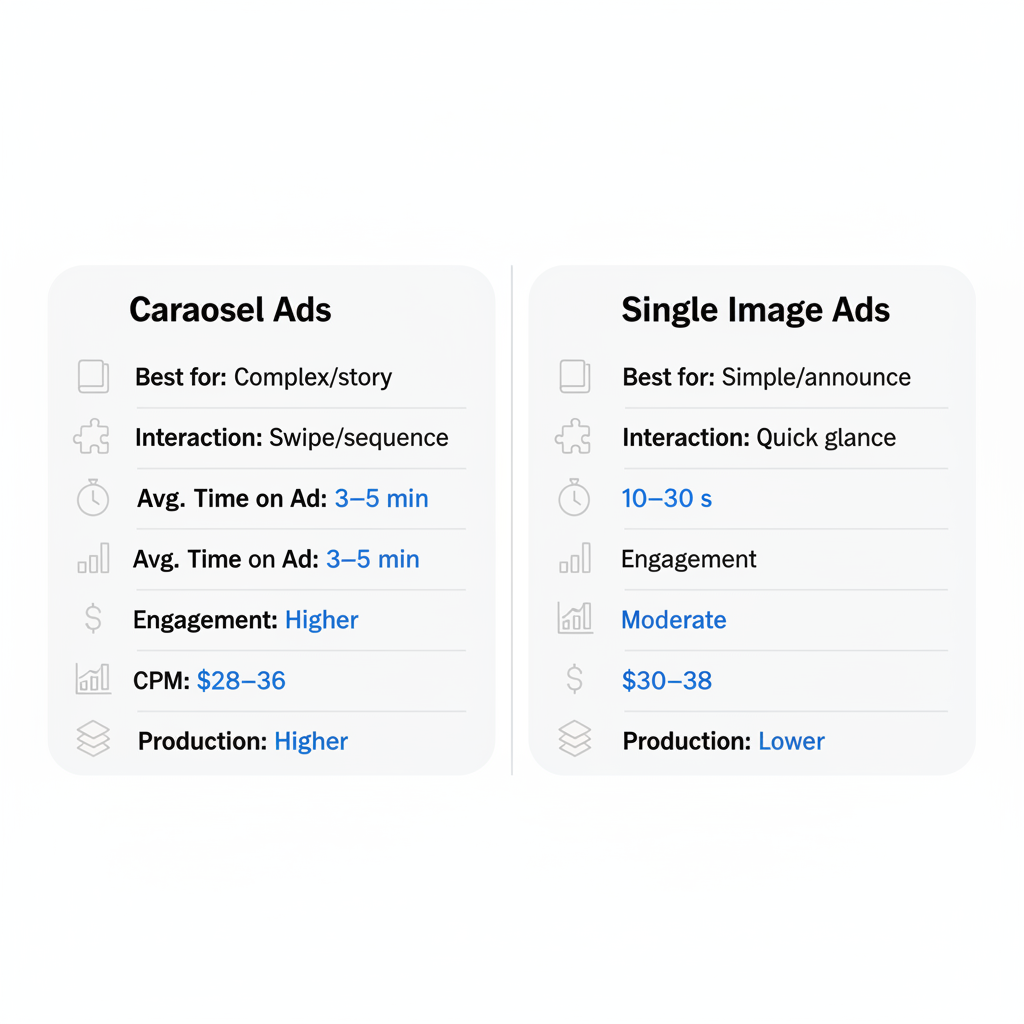
Metric | Carousel Ads | Single Image Ads |
Avg. Time on Ad | 3-5 minutes | 10-30 seconds |
Engagement Rate | Higher | Moderate |
CPM | $28-$36 | $30-$38 |
CTR | Generally higher | Variable |
Production Time | Higher | Lower |
According to 2026 format analysis, carousel ads achieve "high" engagement levels compared to "moderate" for single image formats, making them worth the additional production investment. Understanding LinkedIn CPM explained helps you evaluate whether the format's higher production cost is offset by better performance.
LinkedIn Carousel Ads vs Other Ad Formats
Beyond single image ads, LinkedIn offers several other ad formats. Here is how carousel ads compare across the full spectrum of LinkedIn advertising options:
Feature | Carousel Ads | Single Image Ads | Video Ads | Document Ads |
Creative Format | 2-10 swipeable image or video cards | One static image | One video file (up to 30 min) | PDF document (up to 300 pages) |
Image Size | 1080 x 1080 px (1:1) | 1200 x 628 px (1.91:1) | Varies (16:9, 1:1, 9:16) | Letter or A4 PDF |
Avg. Engagement | High (swipe interaction) | Moderate | High (autoplay) | High (in-feed reading) |
Lead Gen Forms | Supported | Supported | Supported | Supported (highest completion rate) |
Best For | Storytelling, multi-feature demos, step-by-step guides | Simple messages, brand awareness, quick announcements | Brand storytelling, product demos, testimonials | Whitepapers, reports, gated content |
Typical CPM | $28-$36 | $30-$38 | $35-$50 | $25-$35 |
If your primary goal is lead generation, document ads often deliver the lowest cost per lead due to their 22.73% lead form completion rate. For storytelling and multi-product showcases, carousel ads remain the strongest option. Video ads work best when brand awareness or emotional connection is the priority. To learn more about how each format fits into a broader strategy, see our complete guide to LinkedIn advertising.
How to Create LinkedIn Carousel Ads: Step-By-Step in Campaign Manager
Setting up a LinkedIn carousel ad is straightforward once you know where everything lives in Campaign Manager. Follow these steps to launch your first carousel campaign.
Step 1: Access LinkedIn Campaign Manager
Log in to LinkedIn Campaign Manager at linkedin.com/campaignmanager. Select the ad account associated with your company page. If you do not have an ad account yet, click "Create Account" and link it to your LinkedIn Company Page.
Step 2: Create a New Campaign
Click the "Create" button and select "Campaign." You will be prompted to choose a campaign group or create a new one. Campaign groups help you organize related campaigns (for example, grouping all carousel experiments together).
Step 3: Select Your Campaign Objective
LinkedIn organizes objectives by funnel stage. Choose the objective that aligns with your goal:
Objective | Best For | Carousel Support |
Brand Awareness | Maximum impressions | Yes |
Website Visits | Driving traffic to your site | Yes |
Engagement | Likes, comments, shares | Yes |
Lead Generation | Collecting leads via Lead Gen Forms | Yes |
Website Conversions | Tracking specific on-site actions | Yes |
For most B2B carousel campaigns, Website Visits or Lead Generation are the most common starting objectives.
Step 4: Configure Audience Targeting
LinkedIn's audience targeting options are among the most powerful in paid social. Set up your targeting using these key dimensions:
- Location: Required field. Start broad (country-level) or narrow to specific metros.
- Job Title: Target decision-makers directly (e.g., "VP of Marketing," "Head of Growth").
- Company Industry: Focus on verticals most likely to convert.
- Company Size: Filter by employee count to match your ideal customer profile.
- Seniority Level: Reach managers, directors, VPs, or C-suite.
- Skills and Interests: Layer on professional skills for intent-based targeting.
Aim for an audience size between 50,000 and 500,000 for optimal delivery. Audiences that are too narrow will not spend budget efficiently, while overly broad audiences dilute relevance.
You can also upload Matched Audiences (website retargeting, contact lists, or lookalike audiences) for higher-intent targeting. This pairs especially well with the sequential retargeting strategy covered later in this guide.
Step 5: Set Budget and Schedule
Choose between a daily budget or a lifetime budget. For testing carousel creative, start with a daily budget of $50-$100 to gather statistically meaningful data within 7-14 days. Select your bid strategy:
- Maximum Delivery (automated): LinkedIn optimizes bids to spend your full budget. Best for beginners.
- Target Cost: Set a target cost per result. Best when you have historical CPA data.
- Manual Bidding: Full control over maximum bid. Best for experienced advertisers.
Step 6: Choose Carousel Ad Format
Under the ad format selection screen, select "Carousel Image Ad." This unlocks the multi-card creative builder where you can upload between 2 and 10 image cards.
Step 7: Build Your Carousel Creative
Now assemble your carousel:
- Write the introductory text that appears above the carousel (up to 600 characters, recommended 150 max). This is the hook that encourages users to start swiping.
- Upload your card images. Each card must be 1080 x 1080 pixels, under 10 MB, in JPG or PNG format.
- Add a headline for each card (45 characters recommended). Headlines appear below the image on each card.
- Set the destination URL for each card. Each card can link to a different landing page, or you can use the same URL across all cards for a unified conversion path.
- Select a CTA button from LinkedIn's preset options: Learn More, Sign Up, Register, Download, Get Quote, Apply Now, Subscribe, or Request Demo.
Step 8: Attach Lead Gen Forms (Optional)
If you selected the Lead Generation objective, attach a LinkedIn Lead Gen Form to your carousel. Lead Gen Forms auto-populate with the user's LinkedIn profile data (name, email, job title, company), dramatically reducing friction. You can add up to 3 custom questions. Lead Gen Forms integrated with carousel ads are particularly effective because users who swipe through multiple cards demonstrate higher intent before reaching the form.
Step 9: Set Up Conversion Tracking
Before launching, ensure the LinkedIn Insight Tag is installed on your website. Then create conversion actions in Campaign Manager to track key events like form submissions, demo requests, or purchases. For detailed setup instructions, see our guide on LinkedIn conversion tracking.
Step 10: Review and Launch
Review all settings: objective, audience, budget, schedule, and creative. LinkedIn will review your ad (typically within 24 hours) before it goes live. Monitor performance in Campaign Manager's reporting dashboard and plan to optimize after the first 7-14 days of data collection.
LinkedIn Carousel Ad Tools and Generators
You do not need a professional design team to create polished carousel ads. Several tools make it easy to design, prototype, and iterate on carousel creative.
Canva Carousel Templates
Canva offers dozens of pre-built LinkedIn carousel ad templates sized to the exact 1080 x 1080 pixel specification. Start from a template, customize colors and fonts to match your brand, and export individual cards as PNG files. Canva's free tier covers most carousel needs, while Canva Pro adds brand kit features, background removal, and team collaboration. Search for "LinkedIn carousel ad" in Canva's template library to find ready-made options for product showcases, case studies, and educational frameworks.
LinkedIn Native Creative Tools
LinkedIn Campaign Manager includes a built-in image editor for basic adjustments like cropping, text overlays, and filters. While not as full-featured as dedicated design tools, it is useful for quick iterations and last-minute creative tweaks without leaving the platform. LinkedIn also provides a free Ad Preview tool that shows exactly how your carousel will render on desktop and mobile feeds before you launch.
Mockup and Preview Generators
Before committing ad spend, preview your carousel in a realistic feed context. Tools like Figma (with LinkedIn feed mockup templates), Placeit, and Adobe Express let you visualize how your carousel cards will look alongside organic content. This helps catch readability issues, spacing problems, and branding inconsistencies before launch.
Bulk Creation and Automation
For teams running multiple carousel variants, Canva Bulk Create lets you generate dozens of card variations from a spreadsheet of headlines and images. Adobe Creative Cloud integrates with data sources for dynamic creative generation. These workflows are especially valuable when A/B testing headline copy, color schemes, or CTA placements across carousel cards.
Carousel Ad Examples and Templates
Example 1: SaaS Product Demo
Imagine a carousel where card 1 features a bold white headline on a dark gradient background reading "5 Features That Cut Reporting Time by 60%" with a subtle dashboard screenshot beneath. Card 2 shows a split-screen visual: on the left, a cluttered spreadsheet representing manual reporting; on the right, a clean automated dashboard. Cards 3-7 each highlight a single feature with a large icon, a 5-word headline, and a product screenshot showing the feature in action. Card 8 displays a customer photo alongside a quote and metrics ("Saved 12 hours per week"). Card 9 recaps all five features as a bullet list with check marks. Card 10 closes with the company logo, a "Start Free Trial" CTA button, and a URL.
Structure:
- Hook: "5 Features That Cut Reporting Time by 60%"
- Pain point: Manual reporting struggles
- Feature 1: Automated data pull
- Feature 2: Custom dashboard builder
- Feature 3: One-click exports
- Feature 4: Team sharing
- Feature 5: Real-time updates
- Results: Customer quote with metrics
- Summary: Key benefits recap
- CTA: "Start Free Trial"
Example 2: Case Study Walkthrough
Picture card 1 with a large metric "340%" in bold typography over a blue gradient, with the subheadline "How [Company] Grew Their Pipeline." Card 2 features the client's logo and a two-sentence company description. Card 3 uses a bar chart visual showing pipeline metrics before the engagement. Cards 4-5 each present one element of the solution with iconography and short explanatory text. Cards 6-7 show results as large numbers with upward arrows (pipeline growth and revenue impact). Card 8 displays a headshot of the client contact alongside their testimonial quote. Card 9 asks "Sound familiar?" with three bullet points describing common challenges. Card 10 features the CTA "Read Full Case Study" with a branded button.
Structure:
- Hook: "[Company] Increased Pipeline by 340%"
- Client profile and challenge
- Specific problem metrics
- Solution overview
- Implementation approach
- Key results - metric 1
- Key results - metric 2
- Client testimonial
- Applicability to reader's situation
- CTA: "Read Full Case Study"
Example 3: Educational Framework
Envision card 1 with a numbered "5" in oversized typography, surrounded by five small icons representing each step, with the headline "The 5-Step B2B Targeting Framework." Cards 2-6 each dedicate a full card to one step: a numbered circle in the top-left corner, a descriptive headline, two sentences of explanation, and a supporting illustration or diagram. Card 7 uses a red "X" motif to highlight three common mistakes marketers make. Card 8 condenses all five steps into a visual flowchart. Card 9 shows a "Next Steps" roadmap with three actionable takeaways. Card 10 features the "Download Full Guide" CTA with a mock-up of the downloadable PDF.
Structure:
- Hook: "The 5-Step B2B Targeting Framework"
- Step 1 explanation
- Step 2 explanation
- Step 3 explanation
- Step 4 explanation
- Step 5 explanation
- Common mistakes to avoid
- Quick reference summary
- Next steps recommendation
- CTA: "Download Full Guide"
Template Planning Checklist
Before creating your carousel:
- Define single core message
- Plan card-by-card flow
- Write headline and body for each card
- Design first card hook
- Create consistent visual template
- Include progress indicators
- End with clear CTA
- Test on mobile
- Review character limits
- Verify file sizes
Advanced Carousel Strategies for 2026
Leverage LinkedIn'S AI Testing Tools
LinkedIn now offers AI-driven A/B testing that can optimize carousel creative in real time. Upload multiple versions and let the algorithm identify winning combinations. If you're working with a LinkedIn advertising company, they can help set up these tests for maximum impact.
Sequential Retargeting
Create carousel sequences where each campaign builds on the previous:
- Carousel 1: Awareness content (educational framework)
- Carousel 2: Consideration content (case studies) for Card 1 engagers
- Carousel 3: Decision content (pricing/demo offer) for Card 2 engagers
Document Ads vs Carousel Ads
LinkedIn Document Ads (PDF-based) offer an alternative to image carousels:
Aspect | Carousel Ads | Document Ads |
Format | Individual image cards | PDF document |
Lead Gen Form Completion | ~15% | ~23% |
Best For | Visual storytelling | Gated content, reports |
CPL | Moderate | Often lower |
Platform data shows Document Ads achieve 22.73% lead form completion rates versus 2.26% for video—consider testing both formats.
Frequently Asked Questions
How Many Cards Should I Include in a LinkedIn Carousel Ad?
Optimal length is 5-10 cards. Engagement data shows interaction drops after the 6th or 7th slide, so front-load your most important content. Never use fewer than 2 or more than 10 cards. When planning your LinkedIn lead generation campaign, consider testing different carousel lengths to find what resonates with your audience.
What'S the Ideal File Size for Carousel Ad Images?
Keep each image under 10 MB, though smaller files (under 5 MB) load faster on mobile. Use compression tools to reduce file size without sacrificing quality.
Can I Use Different Ctas on Different Carousel Cards?
Yes, each card can have its own headline and link to different destinations. However, maintaining a consistent CTA across cards typically performs better for clear conversion goals. For comprehensive strategies, refer to our complete guide to LinkedIn advertising.
Do Carousel Ads Cost More Than Single Image Ads?
CPM for carousels is often slightly lower ($28-$36) than single image ads ($30-$38), likely because the format drives higher engagement. However, production costs are higher due to multiple creative assets required. Compare this to LinkedIn sponsored content cost to understand your total investment.
How Much Do LinkedIn Carousel Ads Cost?
LinkedIn carousel ad costs vary based on your targeting, industry, and competition. On average, expect to pay a CPM (cost per 1,000 impressions) of $28-$36 for carousel ads. Cost per click (CPC) typically ranges from $5 to $15 depending on audience specificity. Cost per lead (CPL) with Lead Gen Forms attached to carousel ads averages $30-$80 for B2B campaigns. Factors that influence cost include audience size, seniority level of targets (C-suite costs more), industry competitiveness, and ad relevance score. Start with a daily budget of $50-$100 for testing, and scale once you identify winning creative and audience combinations.
What Is the Best Size for LinkedIn Carousel Ads?
The recommended size for LinkedIn carousel ad images is 1080 x 1080 pixels at a 1:1 (square) aspect ratio. This is both the minimum and recommended resolution. Each image card must be under 10 MB and in JPG, PNG, or non-animated GIF format. While LinkedIn technically accepts other dimensions, the 1080 x 1080 square format ensures consistent display across all cards, on both desktop and mobile devices. Using a different aspect ratio may cause cropping or inconsistent card heights that break the visual flow of your carousel.
How Many Cards Can You Have in a LinkedIn Carousel Ad?
LinkedIn carousel ads support a minimum of 2 cards and a maximum of 10 cards. While you can use up to 10, engagement data shows that interaction tends to drop off after the 6th or 7th card. The optimal range for most campaigns is 5-7 cards. Front-load your most compelling content in the first 3-4 cards to capture attention early. Use the final card as a dedicated call-to-action. Each card can have its own headline, image, and destination URL, giving you flexibility to test different card counts and find what resonates with your specific audience.