
Conversion tracking transforms LinkedIn advertising from guesswork into measurable ROI. Without it, you can't attribute leads to specific campaigns, build retargeting audiences, or optimize for actual business outcomes.
This guide walks through setting up LinkedIn conversion tracking using both the Insight Tag and Conversions API (CAPI).
Why Conversion Tracking Matters
LinkedIn conversion tracking enables three critical capabilities:
1. Attribution: Know which campaigns, ads, and audiences drive actual conversions-not just clicks.
2. Optimization: Feed LinkedIn's algorithm quality signals so it can find more users likely to convert.
3. Retargeting: Build audiences based on website behavior (pricing page visitors, cart abandoners, content downloaders).
According to LinkedIn Campaign Manager guidance, the Insight Tag "tracks visitors and conversions, which lets you retarget people who visited your site and measure which campaigns are driving real results."
Tracking Method Options
LinkedIn offers three methods for tracking conversions:
Method | Best For | Setup Complexity |
Insight Tag | Website conversions | Easy |
Conversions API (CAPI) | Server-side tracking | Moderate |
CSV Upload | Offline/CRM conversions | Manual |
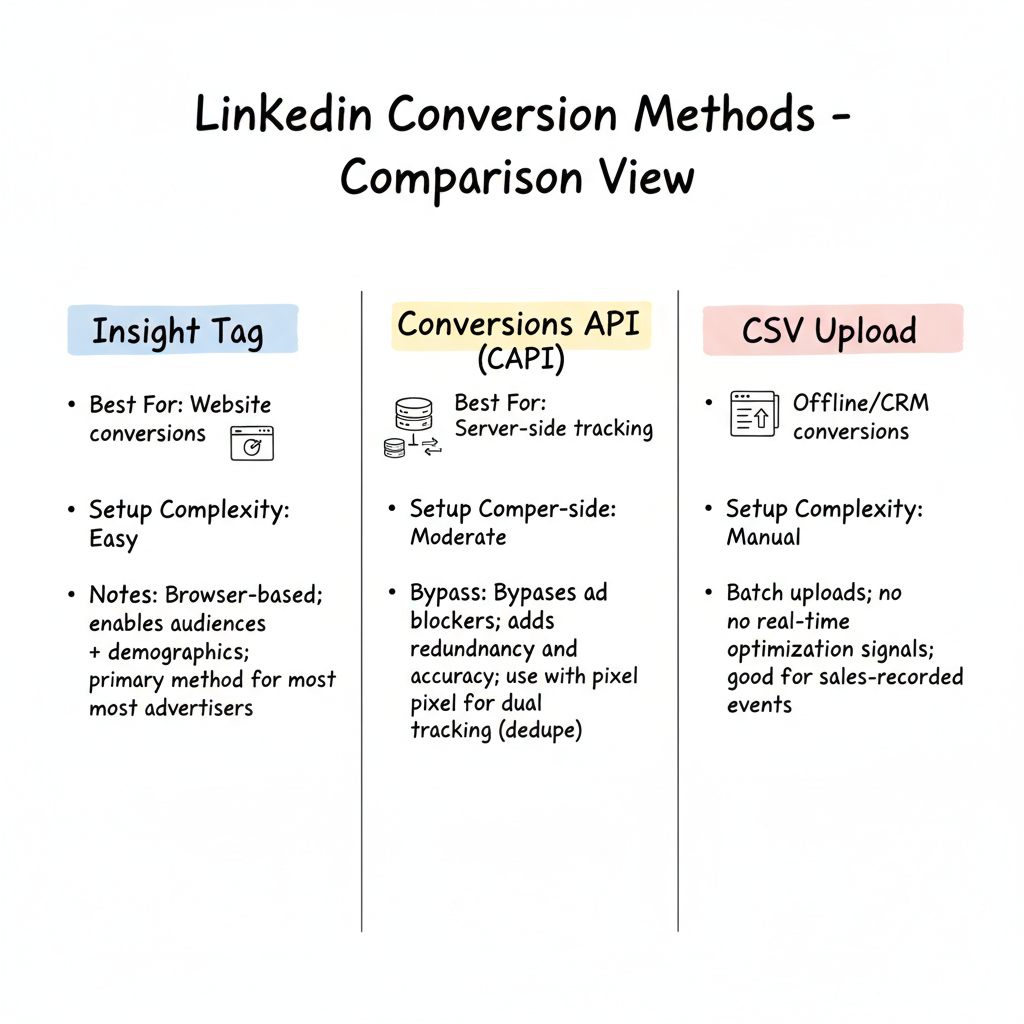
For most advertisers, the Insight Tag provides sufficient tracking. CAPI becomes important for privacy-conscious setups or when you need to capture conversions the browser-based tag might miss.
Installing the LinkedIn Insight Tag
Step 1: Generate Your Tag
- Go to Campaign Manager
- Click Data in the left menu
- Select Signals Manager
- Click Insight Tag
- Choose your installation method:
- Install yourself (copy code)
- Send to developer
- Use tag manager
Step 2: Add to Your Website
The Insight Tag is lightweight JavaScript code that goes in the header section of your website, before the closing </head> tag.
Direct Installation: Copy the full code snippet and paste it into your website header. This needs to appear on every page you want to track.
Google Tag Manager Installation:
- Create a new Custom HTML tag
- Paste the Insight Tag code
- Set trigger to "All Pages"
- Publish the container
WordPress/CMS Installation: Most CMS platforms have header/footer injection options or dedicated LinkedIn tracking plugins.
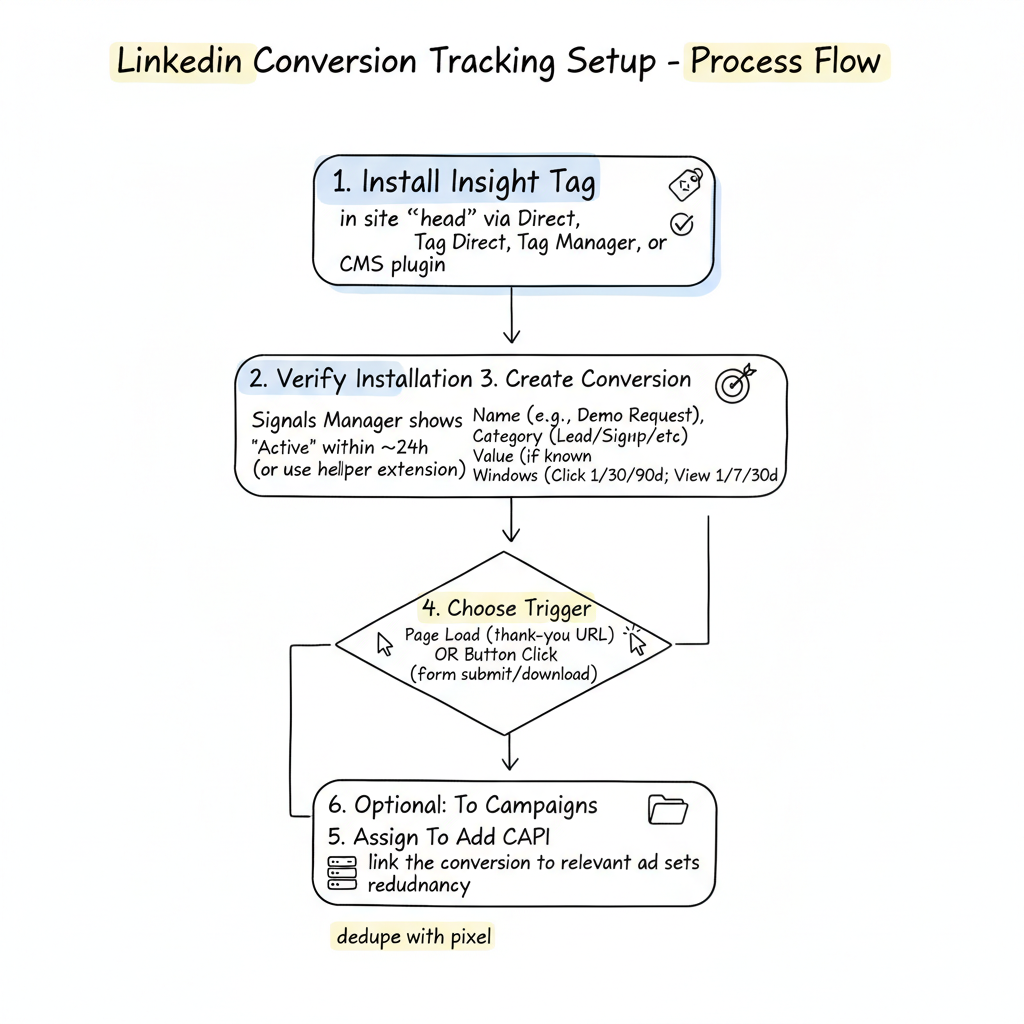
Step 3: Verify Installation
After installation, return to Signals Manager in Campaign Manager. The tag status should show as "Active" within 24 hours. You can also use browser developer tools or the LinkedIn Insight Tag Helper Chrome extension to verify firing.
Setting Up Conversion Rules
Once your Insight Tag is active, create conversion rules to define what actions you want to track.
Creating a Conversion
According to LinkedIn's conversion setup guide:
- Go to Campaign Manager
- Click Measurement > Conversion Tracking
- Click Create Conversion
- Select Insight Tag as your source
Conversion Settings
Name: Use descriptive names like "Demo Request - Pricing Page" or "Whitepaper Download - ABM Guide"
Category: Choose from options like Lead, Purchase, Sign-up, Key Page View, or Custom
Value: Assign a monetary value if known (helps with ROAS calculations)
Attribution Window:
- Click-through: 1, 7, 30, or 90 days
- View-through: 1, 7, or 30 days
According to conversion tracking best practices, use Last Touch Attribution and avoid mixing page load + button click triggers in the same conversion rule.
Trigger Types
Page Load: Fires when a user visits a specific URL (thank-you pages, confirmation pages)
Button Click: Fires when a user clicks a specific element (form submissions, download buttons)
Event-Specific: Tracks JavaScript events you define
For most lead generation, page load tracking on thank-you pages provides the cleanest data. This approach is similar to how LinkedIn lead gen forms capture conversions directly within the platform.
Filtering by URL
Filter conversions to specific pages for accuracy:
- Equals: Exact URL match
- Starts with: URL prefix match
- Contains: Partial URL match
Example: Track only demo requests from your pricing page by filtering for URLs containing "/thank-you" AND "/pricing" in the referrer.
Setting Up Conversions API (CAPI)
For advertisers needing server-side tracking, LinkedIn's Conversions API sends conversion data directly from your server-bypassing browser limitations.
When to Use CAPI
Privacy-focused tracking analysis recommends server-side tracking to "maintain measurement accuracy in a privacy-first world" by "capturing conversion data directly from your server, bypassing browser restrictions and ad blockers."
CAPI is particularly valuable when:
- iOS and browser privacy settings block pixel tracking
- You need to track offline conversions from CRM
- High accuracy is critical for optimization
- You want redundancy beyond browser-based tracking
CAPI Setup Options
LinkedIn offers multiple CAPI integration paths:
Partner Integrations: Zapier, Segment, and other marketing automation platforms offer pre-built LinkedIn CAPI connectors.
Direct API: For custom implementations, LinkedIn provides API documentation for direct server-to-server communication.
CRM Integrations: HubSpot, Salesforce, and other CRMs can sync conversion data to LinkedIn through Business Manager connections.
If you're working with linkedin-marketing-partners, many offer managed CAPI implementations as part of their services.
Best Practice: Dual Tracking
According to conversion API implementation guidance, the most effective approach combines both methods: "Leverage LinkedIn Conversion API to send conversion data from websites, campaigns, CRM, and other sources directly to LinkedIn's ad platform to train your Ads algorithm better."
Use the Insight Tag as your primary tracking and CAPI as a backup/enhancement layer. LinkedIn automatically deduplicates events when both fire for the same conversion.
Attribution Settings
Attribution Models
LinkedIn uses last-touch attribution by default. This credits the last LinkedIn ad interaction before conversion.
Click-Through Attribution: User clicked your ad, then converted within the attribution window.
View-Through Attribution: User saw your ad (without clicking), then converted. This captures influence from impressions.
Recommended Windows
Conversion Type | Click Window | View Window |
Lead Gen Forms | 30 days | 7 days |
Demo Requests | 30 days | 7 days |
Content Downloads | 7 days | 1 day |
Purchases (B2B) | 90 days | 30 days |
Longer windows capture more conversions but may over-attribute to LinkedIn. Shorter windows provide cleaner attribution but may undercount.
Assigning Conversions to Campaigns
After creating conversion rules, assign them to the appropriate campaigns:
- Go to your conversion rule
- Click Manage Ad Sets
- Select campaigns that should track this conversion
- Save changes
LinkedIn automatically suggests campaign assignments based on conversion category, but you can customize which campaigns track which conversions. This becomes particularly important when measuring linkedin-ads-cost-per-lead across different campaign objectives.
Troubleshooting Common Issues
Tag Not Firing:
- Verify the full code was copied (check for curly vs. straight quotation marks)
- Ensure tag is placed in the header, not footer
- Check for JavaScript errors blocking execution
Conversions Not Recording:
- Verify URL filters match actual thank-you page URLs
- Confirm attribution window hasn't expired
- Check that campaigns are assigned to the conversion rule
Duplicate Conversions:
- Review event deduplication settings if using both Insight Tag and CAPI
- Ensure thank-you page doesn't reload or fire events multiple times
For additional help, consider reaching out to linkedin-advertising-support or consulting with specialized agencies.
Connecting Conversions to Pipeline, Not Just Leads
The gap most LinkedIn conversion setups leave is the jump from "we got a lead" to "that lead became revenue," and closing it is what makes the tracking worth the effort. A lead sitting in your CRM proves only that the ad prompted a form fill, not that it moved the business, so the mature implementation pushes conversion data one step further: sync closed-won opportunities back to LinkedIn via the offline conversion API or a CRM connector, and tag them with value. LinkedIn can then optimize toward revenue rather than raw lead volume, which sharply reduces the classic failure of cheap leads that never close. The practical setup is to define a closed-won conversion event in your CRM, map it to a LinkedIn conversion rule, and assign it to the campaigns that should train on it. Teams that stop at lead tracking optimize to the wrong incentive; teams that feed pipeline back into the loop optimize to money.
Privacy-First Tracking Without Losing the Signal
Browser and OS changes have made the browser-only Insight Tag fragile, and pretending otherwise produces the "conversions dropped but nothing changed" panic that is almost always a tracking gap, not a performance collapse. The resilient pattern is dual tracking: keep the Insight Tag as the primary signal and run CAPI or a CRM-based server-side feed as the backup, letting LinkedIn deduplicate the two. Beyond redundancy, server-side data survives ad blockers and Intelligent Tracking Prevention, so your optimization signal stays intact when the browser path is blocked. For teams in regulated industries or with strict consent regimes, the server-side route also gives you explicit control over what leaves your environment and when, which matters for compliance. The takeaway is that conversion tracking is no longer a one-tag install -- it is a resilient data pipeline, and the teams that treat it that way stop losing signal to platform policy shifts.
Auditing Your Tracking Before You Trust the Numbers
Conversion data is only as good as the last time someone verified it, and the silent failure mode is a tag that "should be working" but stopped firing after a site redesign or a consent-banner change. Institute a monthly tracking audit as a standing task: confirm the Insight Tag status is Active in Signals Manager, spot-check that a test conversion records within the expected 24 to 48 hour window, and validate that URL filters still match your current thank-you pages. Equally important, check that the campaigns you expect to be measuring a conversion actually have it assigned -- assignment drift is the most common cause of "LinkedIn says zero conversions" when leads are clearly arriving. Fold this audit into the same weekly or monthly analytics health check used for other channels so tracking integrity is a habit, not a fire drill triggered by a bad board meeting.
Frequently Asked Questions
How Long Does It Take for LinkedIn Conversions to Appear?
Conversions typically appear in Campaign Manager within 24-48 hours. Real-time reporting isn't available-expect a delay between when conversions happen and when they show in your dashboard. For more detailed performance analysis, leverage linkedin-ads-reporting best practices.
Can I Track Conversions Without the Insight Tag?
Yes, using Conversions API or CSV uploads. However, the Insight Tag is the simplest option for most advertisers and enables additional features like website demographics and retargeting audiences.
Should I Use Click-Through or View-Through Attribution?
Use both. Click-through captures direct response; view-through captures awareness influence. For reporting, focus on click-through conversions but monitor view-through to understand full campaign impact.