
How to Turn Off Google AI Overviews: 7 Methods (2026)
You cannot permanently turn off Google AI Overviews - Google offers no official toggle. But several reliable workarounds suppress them: add -AI to any query, use the udm=14 web-results parameter, switch to the Web search filter, try Web Guide mode in Search Labs, or use a browser like Safari or Firefox that shows fewer Overviews.
TL;DR - 7 methods to turn off Google AI Overviews:
- The -AI query trick - append -AI to any search for an instant, no-setup bypass.
- The udm=14 parameter - forces Web-only results; set it as your default search engine for a permanent bypass.
- Google account and search settings - incognito mode, signing out, and a non-primary results language reduce AI Overviews.
- Web Guide mode (Search Labs) - reorders the page so traditional links sit above the AI content.
- Browser extensions - Bye Bye Google AI and Hide AI Overviews strip them automatically on every search.
- Switch browsers or search engines - Safari, Firefox, DuckDuckGo, Brave, and Kagi show fewer or no AI summaries.
- Gmail AI feature controls - separate toggles turn off Gmail, Chat, and Meet smart features.
Want the opposite result? Here is how to turn AI Overviews back on. If your Overviews disappeared unexpectedly rather than by choice, see AI Overviews not showing up to tell a deliberate block from a genuine glitch.
This guide covers disabling Google AI Overviews when and how it makes sense for your situation, from the fastest one-query tricks to permanent browser-level workarounds. However, several proven workarounds exist to disable AI Overviews and get back to a traditional search experience.
According to H2S Media's AI mode guide, there is no single, permanent OFF switch that completely removes AI from your Google search experience. Google controls the search service through their servers, not through your browser - Chrome is just the window, and what you see through that window is determined by Google's infrastructure.
Why Users Want to Disable AI Overviews
If you are not trying to disable Overviews but instead hit the "can't generate an AI overview" error, our AI Overview generation error guide covers the causes and fixes.
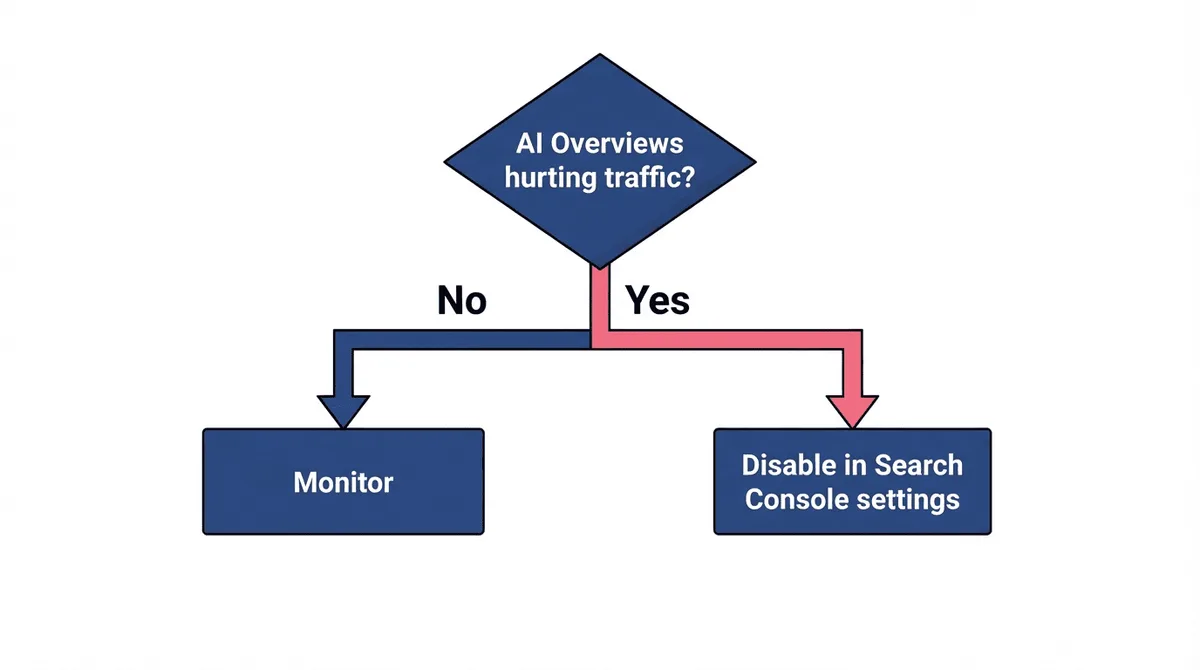
Understanding motivations helps determine which workaround fits your needs. Disabling Google AI Overviews when and how you search - whether for a single query or permanently - depends on your primary reason for opting out.
According to LinkedIn's AI Overview analysis, Google's quiet admission reflects ongoing issues with AI Overviews producing inaccurate information, fabricated sources, wrong citations, and hallucinated content. These problems stem from limitations in large language model synthesis combined with retrieval challenges and ambiguous or rapidly changing queries.
Some of the most memorable AI Overview errors have fueled public distrust. In 2024, Google's AI infamously suggested putting glue on pizza to keep cheese from sliding off and recommended eating rocks for their mineral content - both sourced from satirical Reddit posts. These high-profile failures illustrate why many users prefer to verify information from original sources rather than trusting AI-generated summaries.
Common reasons to disable AI Overviews:
Reason | Use Case | Priority |
Research accuracy | Verifying sources directly | High |
SERP analysis | Studying traditional rankings | SEO professionals |
Information verification | Avoiding AI hallucinations | Quality-focused users |
Click-through preference | Wanting full page context | Traditional searchers |
Performance | Faster page loads | Speed-conscious users |
The accuracy problem extends beyond embarrassing examples. Researchers and journalists rely on tracing claims back to primary sources, which AI Overviews make harder by synthesizing content from multiple pages without clear attribution. For fact-checking workflows, disabling Google AI Overviews when and how you work provides direct access to original reporting rather than a curated AI summary.
SEO professionals face a distinct challenge: AI Overviews alter the click patterns and visibility signals that traditional SERP analysis depends on. Without the ability to view standard results, tracking rank changes or measuring SERP feature distributions becomes unreliable for any query type where AI Overviews appear.
Privacy-focused users also disable AI Overviews because AI features require personalization signals - browsing history, search patterns, and engagement data - to function effectively. Opting out reduces the volume of behavioral data processed for personalization, appealing to users who prefer minimizing their data footprint with Google services.
The Udm=14 Parameter Method
The most reliable workaround uses a URL parameter to force traditional results.
According to H2S Media, the URL parameter &udm=14 forces Google to display Web-only results automatically. When you search Google, appending &udm=14 to the URL achieves the same effect as clicking the Web filter, but it can be automated. This parameter has been available since May 2024 and continues to work as of January 2026, providing a 100% reliable bypass for AI Overviews across all standard Google search queries.
How to implement udm=14:
- Manual addition: After searching Google, append
&udm=14to the URL in your browser address bar. The page reloads with Web-only results and the AI Overview disappears immediately. Bookmark the modified URL for easy access on repeat searches. - Custom search engine in Chrome: Go to Chrome Settings, click Search Engines, then Manage search engines, then Add. Set the search URL to
https://www.google.com/search?q=%s&udm=14and make it your default. Every search you run will now automatically bypass AI Overviews without any extra manual steps each time you search. - Alternative portal sites: You can use a proxy site like udm14.com or tenbluelinks.org directly in your browser. Both sites automatically append the udm=14 parameter to your Google searches, returning traditional web results without installing anything or modifying browser settings.
- Browser extensions: Install Bye Bye Google AI or Hide AI Overviews from the Chrome Web Store. Both extensions handle the bypass automatically on every search without requiring manual URL edits. Firefox users can find equivalent add-ons in the Mozilla Add-ons store that provide the same hands-free experience across all searches.
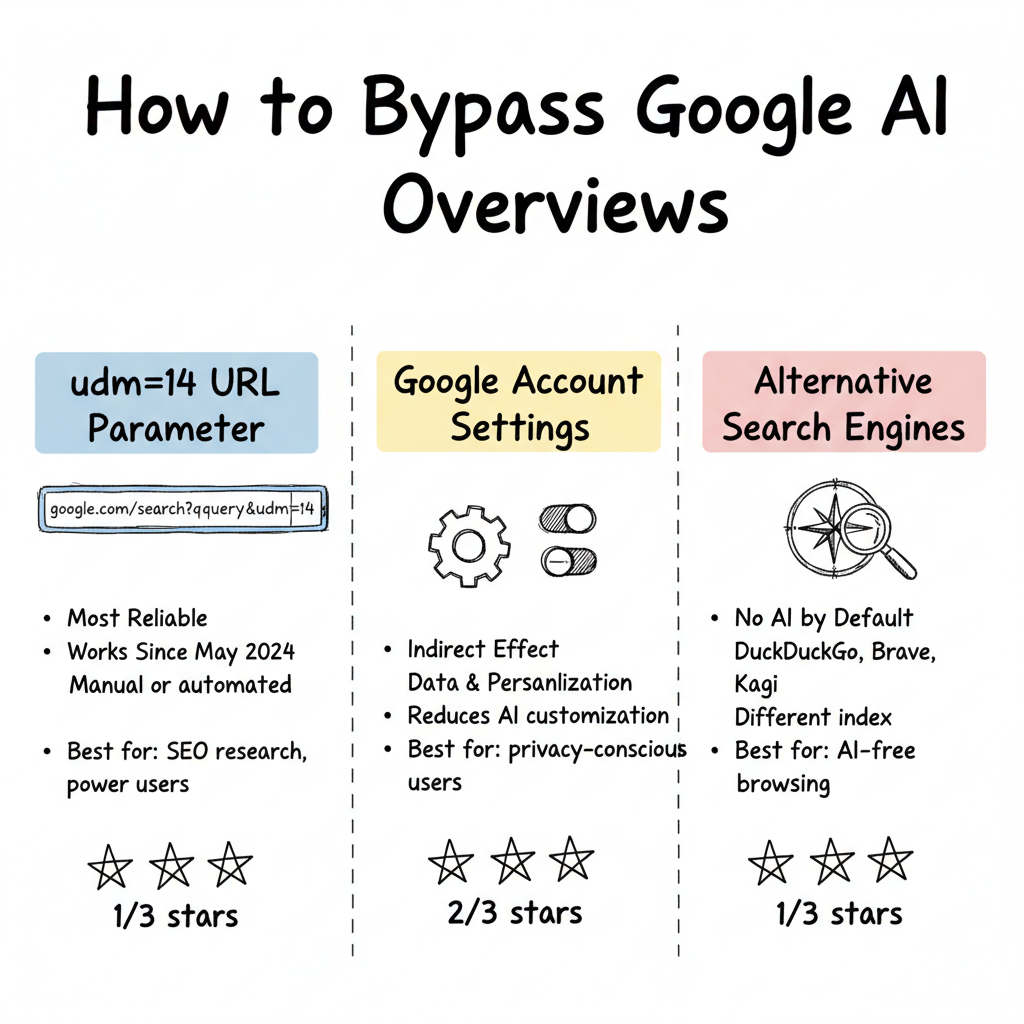
The udm=14 approach works because Google maintains a stable API for its Web search filter. Unlike browser-based content blockers that require regular updates as Google changes its DOM, udm=14 is a server-side instruction routing requests to a separate results endpoint. It requires no extension to install, maintain, or update - making it the most durable long-term bypass available.
The -AI Query Trick
The simplest way to turn off AI Overviews for any individual search requires no browser configuration at all. Just append -AI to the end of your search query. For example, instead of searching for "best hiking trails Colorado," search for "best hiking trails Colorado -AI" instead.
This works because the minus operator (-) in Google Search acts as an exclusion filter. Adding -AI tells Google to exclude results mentioning "AI," which as a side effect tricks Google into removing AI Overview panels and lets you switch back to web results that show traditional blue links. This trick has been widely recommended by publications including WIRED, PCMag, ZDNet, and CNET as the fastest no-setup method.
Keep in mind that -AI may occasionally filter out a small number of legitimate results that happen to mention AI in their content. For most general searches, this tradeoff is negligible. The -AI trick works on both desktop and mobile browsers without any extensions or settings changes.
The -AI trick is the fastest zero-setup method to suppress AI Overviews on any device - no extensions, no account changes, and no browser configuration required.
The -AI trick is most effective for general informational searches where the AI Overview would otherwise summarize multiple sources. It is less useful for queries where "AI" is a meaningful term in the results - such as searches about AI tools, companies, or technology - since excluding the word may filter relevant results alongside the AI Overview.
For maximum coverage, combine -AI with the Web search filter or udm=14. Using both together removes the AI Overview and ensures no AI-related terminology is filtered from results. This combination handles edge cases where -AI alone might miss the Overview.
Browser users can create a search shortcut that automatically appends -AI to every query. In Chrome, create a custom search engine with keyword "g-" and URL https://www.google.com/search?q=%s+-AI, then trigger it by typing "g-" in the address bar followed by your search query.
Google Account Settings
While no direct toggle exists, account settings affect some AI behavior. This becomes particularly relevant when considering the broader shift toward generative AI in SEO strategies.
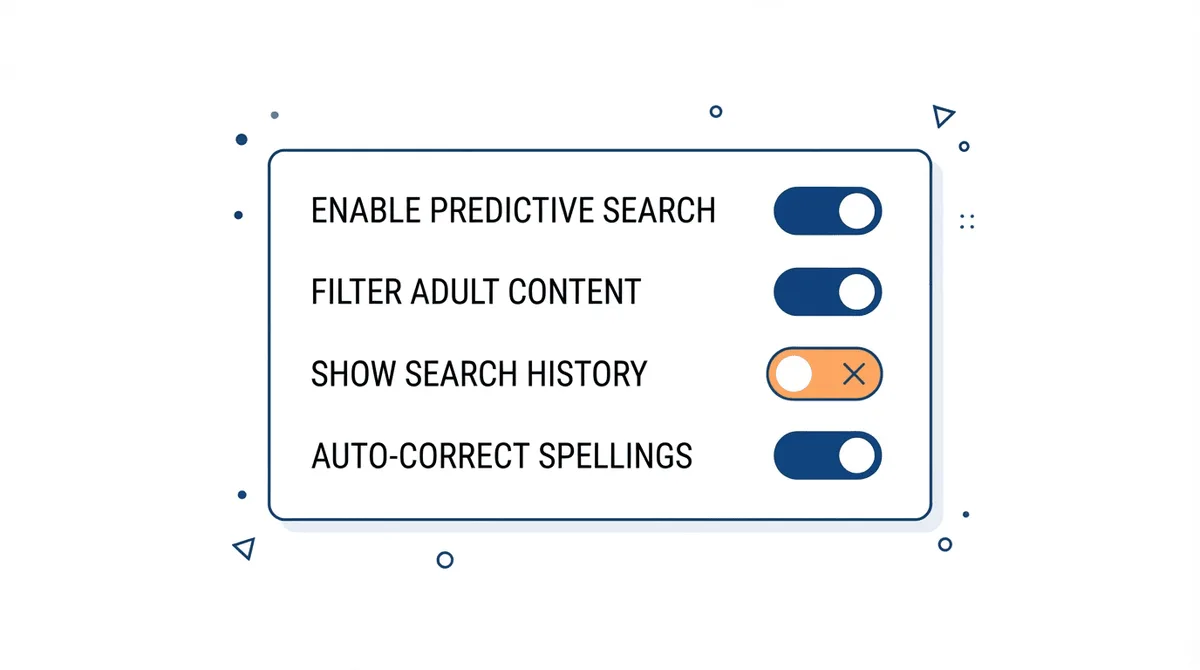
According to Oreate AI's settings guide, while there's no direct toggle labeled "turn off AI," diving into account settings yields helpful adjustments. Navigate to Data & Personalization options, then Activity Controls where you can manage Web & App Activity settings - disabling certain data collection may reduce tailored AI recommendations over time.
Settings to review:
Setting Location | What It Affects | Impact on AI Overviews |
Web & App Activity | Personalization signals | May reduce customization |
Search settings | SafeSearch, language | Indirect influence |
Data & Personalization | Activity controls | Limits AI learning |
Incognito mode | Tracking avoidance | Reduces personalized AI |
Incognito mode offers an immediate session-level approach. Searching in a private window uses no stored personalization data, reducing Google's ability to customize AI Overviews to your history. Combined with the udm=14 parameter, incognito mode creates an experience close to what a first-time Google user sees without any account-specific AI tuning.
Google Search settings - accessible via the gear icon on any results page - let you set default search language and filters. Switching the Results Language to one other than your primary language suppresses AI Overviews in most cases, since the feature is less consistently deployed across non-English queries and regions with lower AI Overview rollout.
For users who sign out of their Google account entirely, AI Overviews appear less frequently on many query types. Google uses account signals to determine when to trigger AI Overviews. Disabling Google AI Overviews when and how you browse - by going incognito or signing out - gives you more practical control than any in-account setting currently provides.
How to Turn Off AI Overviews on Mobile (Iphone and Android)
One of the most common questions is how to disable Google AI Overviews on a phone. The methods differ slightly between iPhone and Android, but both platforms have workable solutions.
Iphone
The easiest approach on iPhone is to use Safari instead of Chrome. Google typically serves fewer AI Overviews to Safari users since it is not a Google-owned browser. If you prefer to stay in Chrome for iOS:
- Open Chrome and tap the three-dot menu
- Go to Settings, then Search Engine
- Tap "Manage Search Engines" and add a new entry
- Set the URL to
https://www.google.com/search?q=%s&udm=14 - Set it as your default search engine
Alternatively, bookmark tenbluelinks.org on your home screen for instant AI-free Google searches.
Android
On Android devices, the process for Chrome is similar:
- Open Chrome and tap the three-dot menu
- Go to Settings, then Search Engine
- Select "Manage search engines" and add a custom entry
- Use the URL
https://www.google.com/search?q=%s&udm=14 - Set it as default
For Firefox on Android, the same custom search engine approach works through Settings, then Search, then "Add search engine." The -AI query trick also works on any mobile browser without configuration - just add -AI to the end of your query.
All three mobile approaches - Safari for fewer AI Overviews, a custom udm=14 search engine, and the -AI query trick - can be combined. Use Safari as your default browser, set up the custom search engine, and apply -AI for one-off queries. This layered approach covers most scenarios where AI Overviews would otherwise appear on mobile.
App-based Google searches on mobile - via the Google app itself - generally show more AI Overviews than browser-based searches, since the app has tighter integration with Google's AI infrastructure. For users who want the least AI possible, disabling Google AI Overviews when and how you access search means using a browser like Safari or Firefox rather than the dedicated Google app.
Web Guide Mode (Search Labs)
Google has introduced a newer experimental feature called Web Guide mode through Search Labs. Unlike the methods above that remove AI Overviews entirely, Web Guide mode reorganizes the results page so that traditional web links appear first, pushing AI-generated content below the fold.
To try Web Guide mode:
- Visit labs.google.com/search while signed into your Google account
- Look for the "Web Guide" experiment
- Enable it to prioritize traditional results in your search layout
Note that Search Labs experiments are not available to all users and may be discontinued at any time. Web Guide mode is best treated as a supplementary option rather than a primary solution. However, it signals that Google recognizes some users prefer traditional results - even if they are not ready to offer a full opt-out.
Web Guide mode is particularly useful for users who want some AI assistance but prefer to see traditional results first. Instead of the AI Overview occupying the top portion of the screen, Web Guide places organic results immediately above the fold, with AI content accessible by scrolling. This layout change alone significantly reduces zero-click AI consumption without fully removing the feature.
The Search Labs interface updates periodically as Google graduates experiments or removes them. If Web Guide mode is not visible in your Search Labs panel, it may not yet be available in your region or account tier. Checking back after a few weeks often surfaces new experiments as Google gradually rolls features out to broader audiences.
Power users can combine Web Guide mode with the udm=14 custom search engine for different use cases. Understanding disabling Google AI Overviews when and how each method fits your task makes switching between a deprioritized-AI layout and a fully AI-free search experience fast and intentional based on what you need from any given query.
Gmail AI Feature Controls
For Gmail-specific AI features, separate controls exist.
According to ABC10's Gmail AI guide, the new AI features in Gmail can be turned off by going to Settings and scrolling down to the "Smart Features" section. Users can uncheck "Turn on smart features in Gmail, Chat, and Meet" and turn off sliders in "Google Workspace smart features."
Gmail AI disable process:
- Open Gmail Settings (gear icon)
- Scroll to "Smart Features" under General tab
- Uncheck "Turn on smart features"
- Click "Google Workspace smart features"
- Toggle off both options
Important tradeoff: Disabling Gmail AI also turns off autocorrect, spell check, desktop notifications, package tracking, and email category sorting.
The smart features toggle affects Google Chat and Google Meet in addition to Gmail. Users who rely on Chat for team communication should note that disabling smart features also removes message suggestions and some notification intelligence from Chat. This tradeoff may not be acceptable for heavy Chat users even if Gmail AI is the primary concern.
Google Workspace users - on paid accounts through an employer - have an additional layer: workspace admins can control AI feature defaults at the organization level. Individual users within a managed Workspace account may find some smart features locked on or off by policy, regardless of what their personal account settings indicate.
If you want to disable only specific AI features rather than all of them at once, use individual feature toggles. Gmail Settings contain separate controls for Smart Compose, Smart Reply, Nudge reminders for unread emails, and Priority Inbox. Turning these off individually preserves more functionality than the all-or-nothing smart features switch in General settings.
Why Google Won'T Offer a Permanent Opt-Out
Understanding Google's strategy explains the lack of user controls.
According to H2S Media, based on Google's trajectory, a permanent user-controlled opt-out for AI features appears unlikely. Google has positioned AI as the future of search, presenting AI Overviews and AI Mode as core features, not experiments. The integration of Gemini into Search is part of Google's broader strategy to compete with ChatGPT, Perplexity, and other AI-first platforms.
Google's strategic considerations:
- AI Overviews represent significant infrastructure investment
- Competitive pressure from ChatGPT and Perplexity
- AI features increase engagement (for many users)
- Personalization data improves AI quality
- No business incentive to enable easy opt-out
Google has positioned AI Overviews as the future of search - not an optional feature. Expecting a permanent opt-out is like expecting YouTube to let you opt out of its recommendation algorithm while still using the platform.
The regulatory angle is worth monitoring. The European Union's Digital Markets Act designates Google as a gatekeeper, which may eventually require user controls for AI features under interoperability and fairness obligations. Several EU cases are examining whether bundled AI features in search constitute anticompetitive behavior - any ruling requiring user choice could force Google to add formal opt-out mechanisms.
Market pressure from AI-native competitors like Perplexity and ChatGPT may also influence Google's feature design. If users migrate specifically to avoid AI summaries in traditional search, Google has a retention incentive to offer more granular controls. User behavior signals matter to a company that monetizes attention and search volume across billions of daily queries.
For now, the practical reality of disabling Google AI Overviews when and how users want them suppressed relies on unofficial workarounds. Google's absence of a formal opt-out is a product decision, not a technical limitation - the infrastructure to flag individual accounts exists, as evidenced by Google's ability to A/B test AI Overview exposure across different user segments.
When AI Overview Removal Makes Sense for SEO
SEO professionals have specific scenarios where avoiding AI Overviews matters, particularly when analyzing the differences between AEO vs SEO ranking factors.
According to Search Engine Land's AI Overview analysis, Google shows AI Overviews largely based on whether users engage with them - and removes them when they don't. If searchers don't interact with AI Overviews for certain query types, Google may stop showing them altogether.
SEO use cases for traditional results:
Scenario | Why Traditional Results Matter |
Rank tracking | Accurate position monitoring |
Competitor analysis | See actual organic rankings |
SERP feature research | Identify non-AI opportunities |
Local SEO audits | Assess map pack visibility |
Client reporting | Show traditional rank data |
Rank trackers face a specific challenge: tools that measure keyword rankings need to see the exact SERP a real user sees. AI Overviews now occupy position zero, shifting organic results down the page and changing above-the-fold visibility for positions 1 through 5. For accurate rank tracking, disabling Google AI Overviews when and how you run rank checks is essential to recording comparable data over time.
Local SEO audits require seeing the map pack without AI Overviews influencing the layout. For local queries, AI Overviews can overlap with or replace the featured snippet, making it difficult to assess whether a business's Google Business Profile knowledge panel is displaying correctly. SEO professionals auditing local visibility disable AI Overviews first to view the clean map pack result.
Content gap analysis - identifying which queries competitors rank for but you don't - is harder with AI Overviews present. The AI Overview's synthesis of multiple sources can mask which individual pages Google is drawing from, obscuring competitive intelligence. Switching to traditional results reveals which URLs actually occupy the featured snippet and top organic positions for a given query.
Publisher Opt-Out Limitations
Content publishers face significant constraints on AI Overview control. Understanding these limitations is crucial when evaluating answer engine optimization tools for your content strategy.
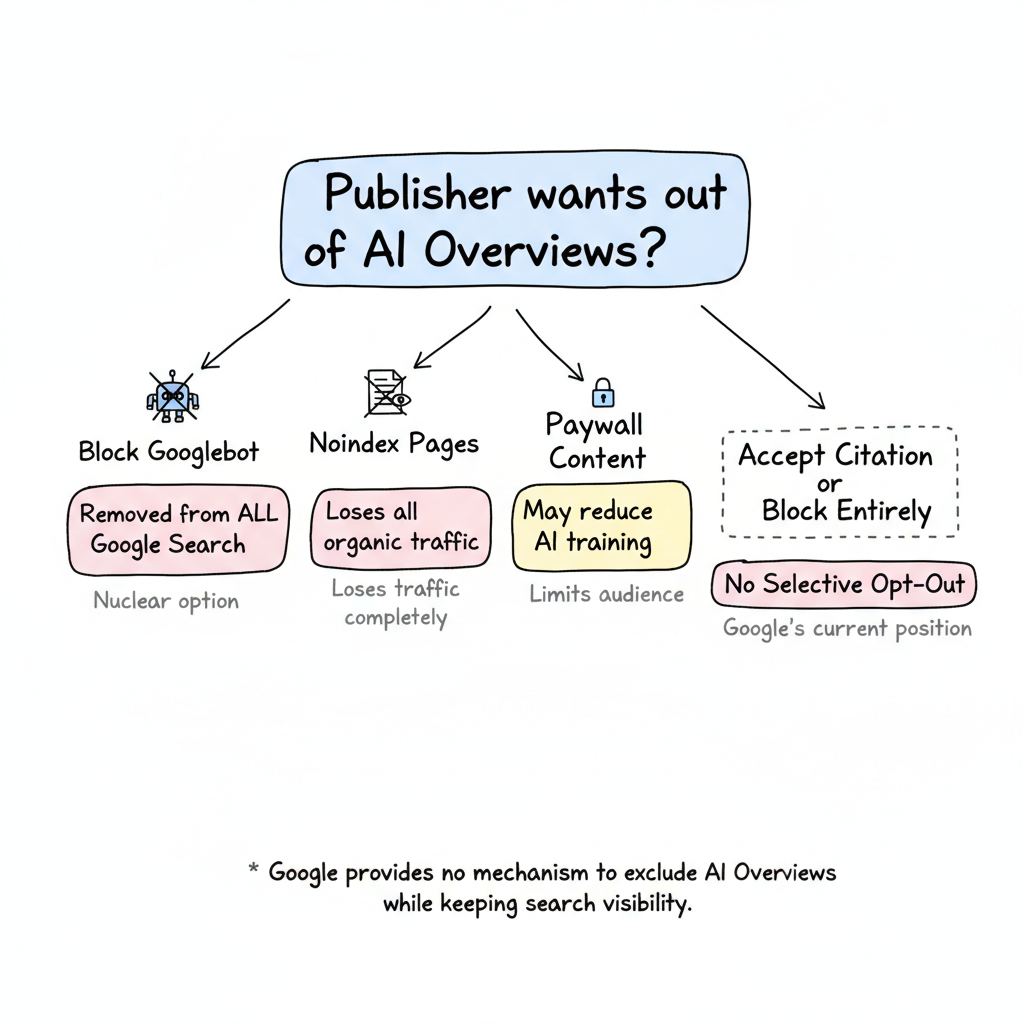
According to ALM Corp's Semrush study analysis, Google currently provides no mechanism to opt out of AI Overview citations while maintaining normal search visibility. According to multiple SEO studies, AI Overviews reduce organic CTR by 20-60% for affected queries. Options are limited to blocking Googlebot entirely (eliminating all Google indexing), noindexing specific content, or paywalling content - none allow selective AI Overview exclusion.
The frustration among publishers is real and growing. Chegg, the education platform, reported a revenue decline exceeding 48% year-over-year and filed a lawsuit against Google in 2024 alleging that AI Overviews were cannibalizing their search traffic by surfacing answers directly in search results instead of driving users to Chegg's website. This case highlights the tension between Google's AI ambitions and the publishers whose content feeds them.
Publisher options and tradeoffs:
- Block Googlebot entirely: Adding a Disallow rule in robots.txt removes your site from all Google search results and AI Overviews simultaneously. This is the nuclear option and eliminates all Google-driven organic traffic, making it impractical for most publishers who depend on search visibility to reach their audience.
- Noindex specific pages: Adding a noindex meta tag to individual pages removes those pages from both organic search results and AI Overview citations. While this prevents AI citation of that content, it also completely eliminates any organic traffic from the affected pages.
- Paywall the content: Paywalling high-value content may reduce its inclusion in AI training data and citations over time. However, this approach limits total audience reach and requires building a subscription revenue model to replace the organic traffic you forgo.
- No selective opt-out available: Publishers have actively lobbied Google for a mechanism that excludes content from AI Overviews while retaining normal search indexing and organic visibility. Google has shown no intent to implement this, leaving publishers with only a binary choice: accept AI citation or block Google entirely.
Alternative Search Engines
For users wanting no AI summaries, alternative search options exist. Those exploring comprehensive strategies may also want to review optimizing FAQ schema for Google AI Overviews as a complementary approach.
A simple but often overlooked workaround is switching browsers. Safari and Firefox tend to show fewer or no AI Overviews compared to Chrome, since Google serves more AI features to its own browser. If you primarily want to avoid AI Overviews without changing search engines entirely, simply using Safari on Mac or iPhone - or Firefox on any platform - can significantly reduce AI content in your results.
AI-free search alternatives:
Search Engine | AI Status | Notes |
DuckDuckGo | Optional AI | Can use without AI features |
Brave Search | No AI default | Traditional results focused |
Mojeek | No AI | Fully independent index |
Kagi | Customizable | Premium, user-controlled |
Ecosia | Limited AI | Privacy-focused alternative |
DuckDuckGo remains the most popular Google alternative for privacy-conscious users. Its AI features (DuckDuckGo AI Chat) are entirely optional and siloed from search results - you must explicitly click into the AI chat to use it. Standard DuckDuckGo searches return traditional blue-link results without AI summaries. The search engine sources results from Bing, Yahoo, and its own crawler, so index coverage is solid for most queries.
Brave Search operates its own fully independent index - unlike DuckDuckGo, it does not rely on Bing or Google at all. By default, Brave Search delivers traditional ranked results. Its optional Summarizer feature (AI summaries) is disabled by default and can be toggled off in settings if it appears. Brave Search is a strong choice for users who want complete independence from Google's infrastructure.
Kagi is a premium paid search engine (starting at $5/month) that offers extensive AI controls. Users can disable AI summaries entirely, set result ranking preferences, and even boost or block specific domains. For power users and researchers who rely on precise, traditional search results, Kagi's level of customization is unmatched. The subscription model also means Kagi has no advertising revenue incentive to push AI features on users.
For users who do not want to switch search engines entirely, the browser choice itself matters. Google serves more AI Overviews to Chrome users than to Firefox or Safari users, likely because Chrome telemetry provides engagement signals that inform AI Overview delivery. Switching to Firefox or Safari on any platform tends to reduce AI Overview frequency without changing any settings.
Frequently Asked Questions
The answers below cover the most common questions about disabling Google AI Overviews when and how each method applies to your specific device and use case.
Can You Permanently Turn Off Google AI Overviews?
No permanent toggle exists. Google treats AI Overviews as a core feature. The best workarounds are the udm=14 URL parameter or the -AI query trick - both reliably suppress AI Overviews but must be used actively each time.
These methods can be set as your default browser behavior so they apply automatically to all searches without extra steps.
How Do I Disable AI Overviews on My Phone?
On iPhone, use Safari or set a custom search engine in Chrome with the udm=14 parameter. On Android, the same approach works in Chrome or Firefox.
You can also bookmark tenbluelinks.org on your home screen or add -AI to queries - both work on any mobile browser without installing apps.
What Does Udm=14 Do in Google Search?
The udm=14 parameter forces Google to show Web-only results, bypassing AI Overviews, featured snippets, and other AI-generated content. It replicates the effect of clicking the "Web" filter tab in search results. You can automate this by setting https://www.google.com/search?q=%s&udm=14 as a custom search engine in your browser.
Does Google Let Publishers Opt Out of AI Overviews?
No. Publishers cannot selectively opt out of AI Overview citations while keeping normal search indexing. Options are blocking Googlebot, noindexing content, or paywalling it - none allow appearing in organic results while excluded from AI Overviews.
These frequently asked questions reflect the most common confusion points around disabling Google AI Overviews when and how different users - from individual searchers to enterprise SEO teams - want to manage their experience. Each method has a different scope, and the right combination depends on your search frequency and tolerance for manual steps.
Note that Google updates its interface and feature rollout regularly. Methods that work as of early 2026 may behave differently as Google modifies AI Overview triggers, Search Labs experiments graduate to full features, or new browser extensions emerge to address ongoing user demand for AI-free search results.
Key Takeaways
Disabling Google AI Overviews when and how you need them suppressed is achievable through multiple reliable methods. Managing these workarounds requires understanding both the available options and their limitations:
- No permanent disable option - Google provides no official toggle to turn off AI Overviews
- The -AI query trick is the fastest method - Just append -AI to any search query
- udm=14 works for persistent bypass - URL parameter forces traditional results reliably
- Mobile users have options - Custom search engines, tenbluelinks.org, and the -AI trick all work on phones
- Web Guide mode offers a middle ground - Search Labs experiment pushes AI below classic links
- Browser extensions automate it - Bye Bye Google AI and Hide AI Overviews handle it automatically
- Publishers have no selective opt-out - It's all Google indexing or nothing
According to LinkedIn's analysis, while users can reduce AI Overviews through workarounds, Google continues expanding these features due to strategic importance. For SEO professionals, understanding both how to bypass AI Overviews for research and how to optimize for citation remains essential - the traditional search experience exists alongside, not instead of, the AI-driven future. Explore Stackmatix's AEO grader tool to audit your content's AI Overview citation readiness.
For most users, the fastest sustainable setup is a custom search engine using the udm=14 parameter set as default in Chrome or Firefox, combined with bookmarking tenbluelinks.org for mobile. This two-step configuration takes under five minutes and permanently shifts your default search experience to traditional results without ongoing effort or maintenance.
Staying informed about Google's changes - through SEO publications like Search Engine Land, The Verge, and Google's own Search Central blog - helps you adapt when workarounds stop working or new options appear. The landscape of disabling Google AI Overviews when and how users prefer continues to shift as Google iterates on its AI search features throughout 2026 and beyond.