
Google AI Mode is not showing up most often because you are outside the US, not signed into a Google account, or have not opted in through Google Search Labs - it is a separate opt-in product from AI Overviews and uses the AI Mode tab or ?udm=8 URL, not the normal search results page. AI Mode is a full-screen conversational search experience that remains in Labs as an experiment; if it disappeared, the fix is usually re-enabling it in Labs, signing back in, or checking your region and browser.
If the AI Mode tab is missing or the "?udm=8" trick stopped working, this guide covers every reason and walks through the exact steps to get it back. Do not confuse AI Mode with AI Overviews - those are the synthesized summaries at the top of normal search results. AI Mode is a different product entirely, covered in our AI Mode vs AI Overviews comparison.
TL;DR: Why Google AI Mode Is Not Showing
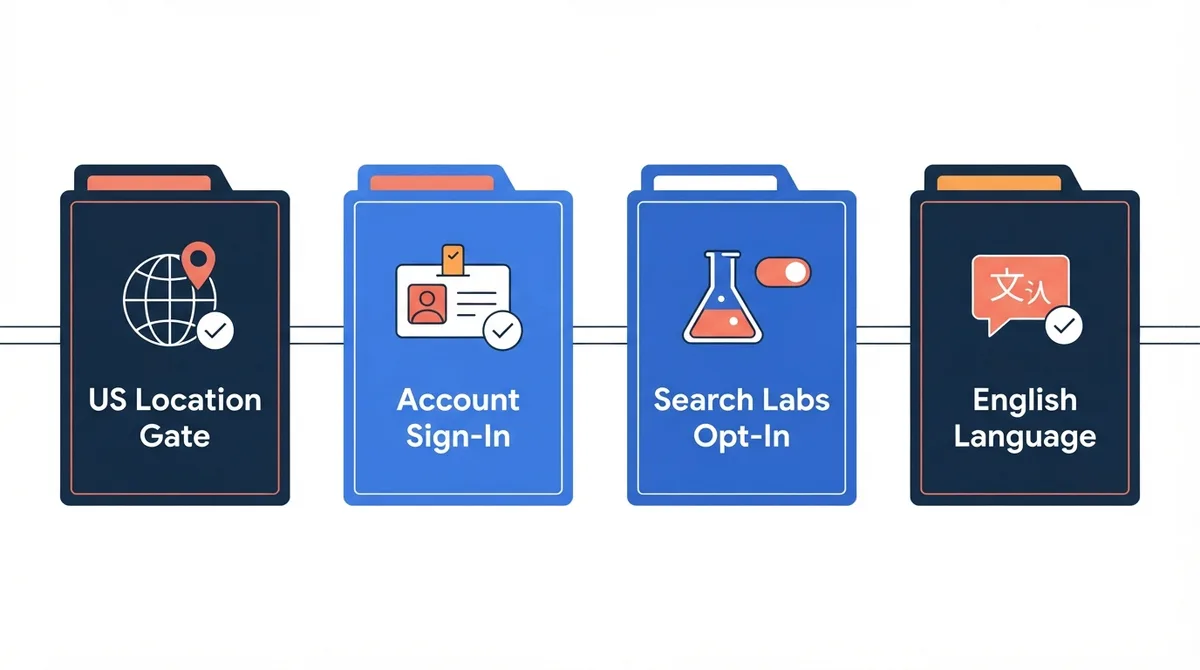
- Region: AI Mode is currently US-only. Outside the US, the tab and ?udm=8 URL will not work.
- Search Labs opt-in: AI Mode requires you to actively join the experiment in Google Search Labs - it does not appear by default.
- Signed-in requirement: You must be signed into a Google account. Incognito and signed-out sessions will not show the AI Mode tab.
- English only: AI Mode only works when your Google language is set to English.
- A/B test rollout: Even if eligible, not every user in Search Labs sees the experiment at the same time.
What Is Google AI Mode Exactly?
AI Mode is a full-screen, conversational search interface inside Google Search - it is not the same thing as AI Overviews. AI Overviews show a synthesized summary box above normal results on the regular search page. AI Mode replaces the normal results page entirely with a chat-style experience powered by a custom Gemini model. You access it through a dedicated "AI Mode" tab at the top of the search results page or by navigating directly to google.com/?udm=8. In AI Mode, you can ask follow-up questions, refine searches conversationally, and toggle into text-only or visual modes.
For a deeper breakdown of how these two products differ in practice, read our side-by-side comparison of AI Mode and AI Overviews. If you are tracking whether your content appears in AI Mode results, see our AI Mode rank tracking guide.
Why Is Google AI Mode Not Showing for Me?
Work through these causes in order. The first one that matches is almost always your answer.
1. You Are Not in the United States
As of 2026, Google AI Mode is only available in the US. If Google detects your location outside the US - whether through IP lookup, device location settings, or Play Store region - the AI Mode tab will not appear and the ?udm=8 URL will redirect back to normal search. A VPN pointing at a US exit node may surface it, but Google may still restrict access based on your account region and payment profile settings.
2. You Have Not Opted into AI Mode in Search Labs
AI Mode is not a default feature. You must explicitly join the experiment in Google Search Labs. Without the opt-in, the tab will not show regardless of region, language, or account status. To check whether you are opted in, visit labs.google.com/search and look for the "AI Mode" experiment. If it is not toggled on, flip the switch and wait a few minutes for the change to propagate. Note that AI Mode may appear under different experiment names during testing phases.
3. You Are Not Signed into a Google Account
AI Mode requires an active sign-in. If you are browsing in incognito mode, signed out, or using a guest profile - even from a US IP - the AI Mode tab will not appear. This is distinct from AI Overviews, which can appear for signed-out users in supported regions. Sign into your Google account, verify you are in the US, and check Search Labs again.
4. Your Google Language Is Not Set to English
AI Mode currently only supports English. If your Google account language or search language preference is set to anything other than English - Spanish, French, Japanese, etc. - the AI Mode tab will likely be hidden. Change your Google language to English (US) in your account settings at myaccount.google.com/language, wait a few minutes, and retry.
5. The Experiment Is Not in Your a/B Test Group Yet
Google Search Labs does not roll out every experiment to every eligible user simultaneously. You may meet all the requirements - US, signed in, English, Labs participant - and still not see the AI Mode toggle. This is a server-side A/B test limitation. There is no manual workaround for this; wait for the experiment to reach your group. Check labs.google.com/search periodically to see if the toggle appears.
6. A Browser Extension or Setting Is Blocking It
While less common than with AI Overviews, some ad blockers, privacy extensions, and custom user-agent overrides can suppress Google Search Labs features. Test in a clean Chrome profile with no extensions to rule this out.
How to Turn on Google AI Mode Step by Step
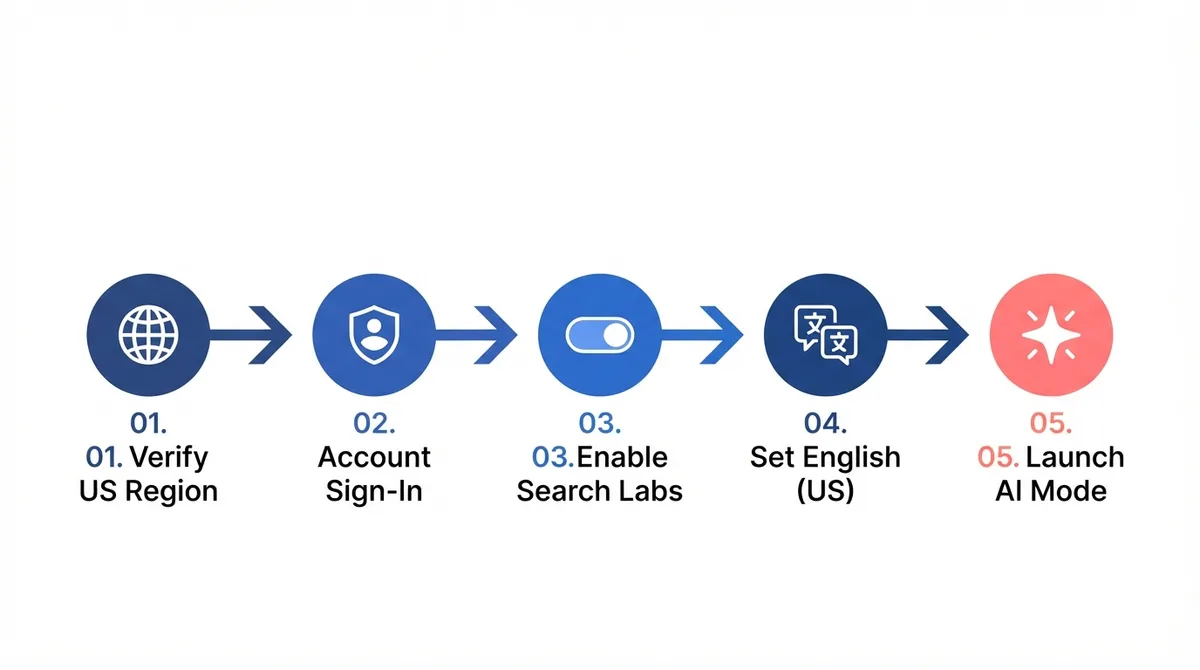
- Confirm you are in the US or using a US-based VPN.
- Sign into your Google account.
- Set your Google language to English (US) at myaccount.google.com/language.
- Go to labs.google.com/search and toggle on the AI Mode experiment.
- Visit google.com, perform any search, and look for the "AI Mode" tab in the top bar - or navigate directly to google.com/?udm=8.
- If the tab still does not appear, wait 24 hours for the experiment flag to propagate across Google's servers.
If you are looking for the AI Overviews equivalent of this process, we have a separate guide on how to turn on Google AI Overviews.
Why Did Google AI Mode Disappear After It Was Working?
If the AI Mode tab previously appeared and then vanished, the most common causes are: you signed out (AI Mode requires sign-in, so check your account status); you traveled outside the US or your VPN disconnected; the Search Labs experiment expired and needs to be re-enabled; or Google pulled it from your A/B test group. Sign back in, re-check labs.google.com/search, and confirm your effective location. If Google has removed the experiment from your account for server-side reasons, there is nothing to do but wait for it to return. This is not the same issue as AI Overviews disappearing, which we cover in our AI Overviews not showing up guide.
Is AI Mode Available on Mobile?
Yes - AI Mode works in the Google app and mobile Chrome on both iOS and Android, with the same requirements: US region, signed-in Google account, English language, and Search Labs opt-in. On mobile, the AI Mode tab appears below the search bar in the Google app after you perform a search. The ?udm=8 URL also works in mobile browsers. If it does not appear on mobile but works on desktop, check that the Google app is updated to the latest version and that your phone's region settings (not just IP) match US.
Frequently Asked Questions
What Is the ?Udm=8 URL for AI Mode?
The ?udm=8 query parameter on google.com is a direct shortcut to AI Mode. Adding it to any Google search URL bypasses the tab navigation and loads AI Mode directly - provided you meet all the eligibility requirements. Without the opt-in and region requirements met, the URL redirects to normal search.
Is AI Mode the Same as AI Overviews?
No. AI Overviews are summarized answer boxes that appear above normal search results. AI Mode is a full-screen conversational search interface that replaces the results page entirely. AI Mode requires opt-in; AI Overviews appear automatically in supported regions. For a detailed breakdown, see our AI Mode vs AI Overviews comparison.
Can I Use AI Mode Without a Google Account?
No. AI Mode requires signing into a Google account and opting into the experiment through Search Labs. This is one of the key differences from AI Overviews, which can appear for signed-out users.
Why Does the AI Mode Tab Appear on Some Searches but Not Others?
The AI Mode tab is a top-level navigation element, not a per-query feature - but Google may hide it on very short navigational searches or when it cannot generate a useful conversational response. Try running a broad informational query first, then look for the tab.
Does Using an Ad Blocker Affect AI Mode?
It can. Ad blockers and privacy extensions occasionally interfere with Search Labs feature flags. If AI Mode works in a clean Chrome profile but not your normal one, whitelist google.com in your ad blocker or disable it temporarily.
Key Takeaways
- Google AI Mode not showing is almost always a region, sign-in, or Search Labs opt-in issue - it is a separate product from AI Overviews with its own eligibility rules.
- You must be in the US, signed in, using English, and opted into Search Labs for the AI Mode tab or ?udm=8 to work.
- If the AI Mode tab disappeared, re-check Search Labs, sign-in status, and your effective region before assuming Google removed it permanently.
- For AI Overviews troubleshooting instead, use our dedicated AI Overviews not showing guide.